

What the connection unlocks
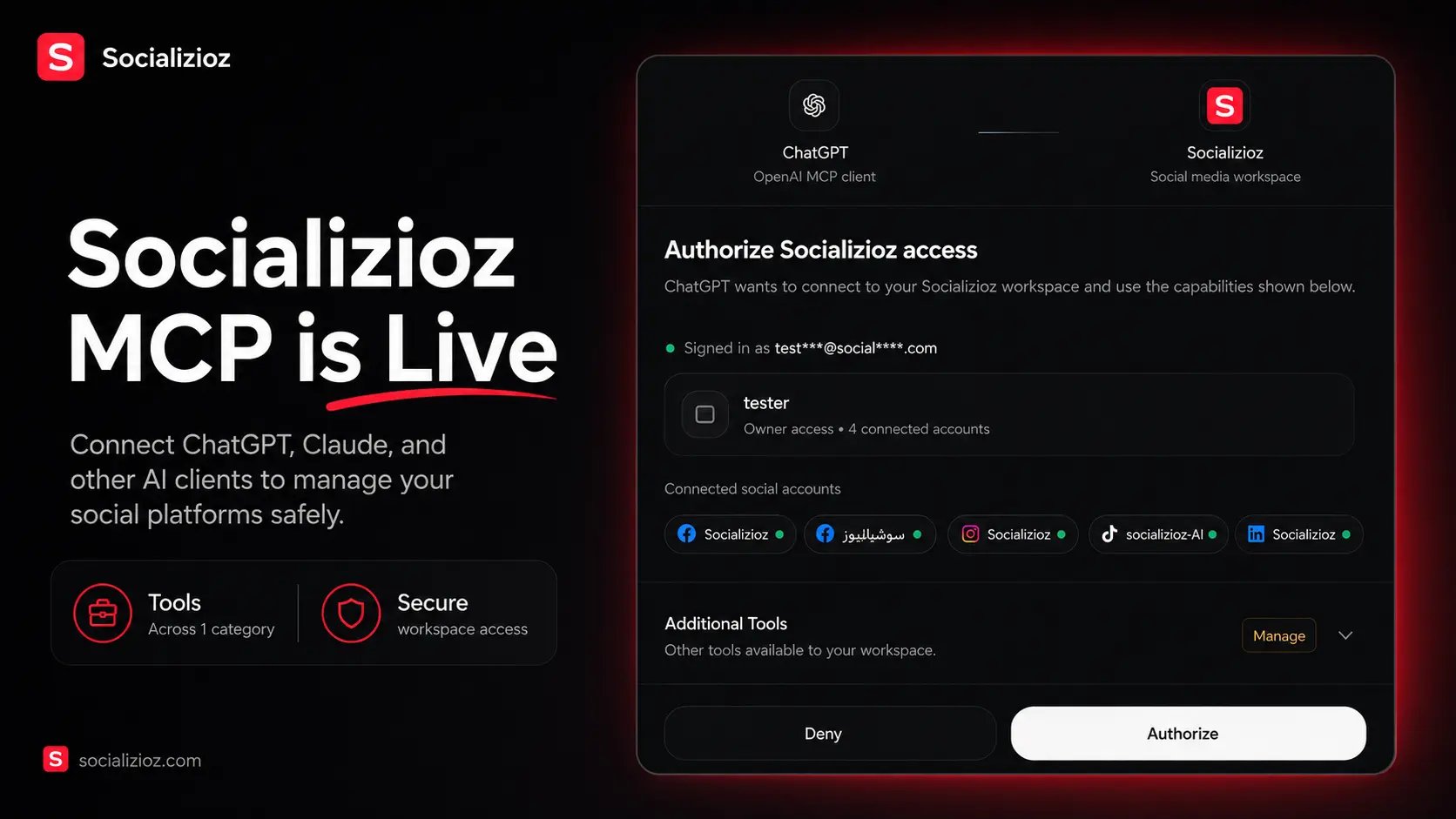
Current access
Socializioz native MCP is currently available to Socializioz users at no additional cost during the current early-access period. This availability can change later as the product grows, but the documentation will be updated before any plan restriction is presented as active. Client-side availability can also depend on the AI provider’s plan, workspace settings, administrator controls, and support for remote MCP connections.Connect a supported remote client
1
Open the client's connector settings
In ChatGPT, Claude, or another supported MCP client, open the area used to add remote tools or connectors.
2
Add the native endpoint
Use
https://socializioz.com/api/mcp.3
Authorize Socializioz
Sign in through the Socializioz authorization flow. Do not paste private tokens manually.
4
Choose the workspace
Select or confirm the workspace the client is allowed to operate.
5
Review requested access
Confirm the client identity and the categories of Socializioz actions being requested.
6
Test with a read action
Start by asking the client to identify the active workspace or list connected accounts before requesting a write or publishing action.
ChatGPT app and native MCP
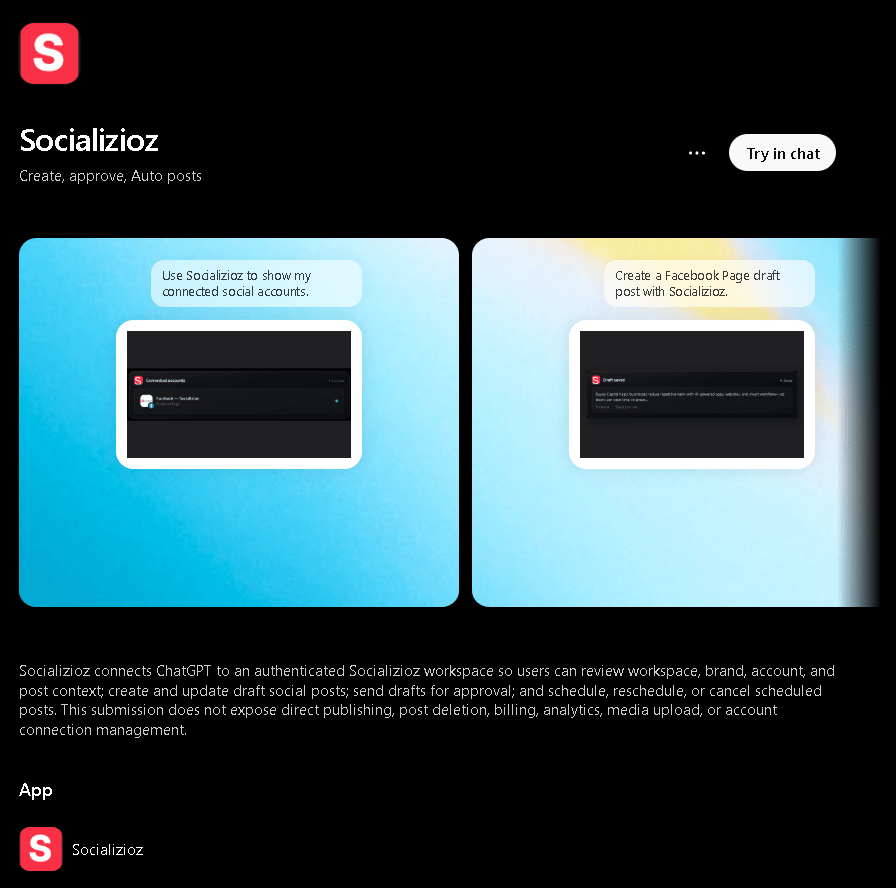
The published ChatGPT app and native remote MCP are separate release surfaces. Their approved versions may not update at exactly the same time.
Open Socializioz in ChatGPT
Open the published Socializioz app in ChatGPT.
Claude
When remote connectors are available for your Claude account:- Open Settings.
- Open Connectors.
- Add the Socializioz remote MCP endpoint.
- Complete Socializioz authorization.
- Confirm the intended workspace.
claude_desktop_config.json example as the primary setup method for the hosted Socializioz service.
Product MCP versus Docs MCP
The Docs MCP cannot create campaigns, access private workspaces, modify posts, schedule content, or publish.
Capability groups
Workspace and brand context
Read the authorized user’s profile, active workspace, available workspaces, brand context, subscription context, and supported capabilities. Representative tools include:get_user_profileget_workspace_contextget_brand_profile
Connected accounts
Inspect social accounts connected to the selected workspace, including available platform and health information.list_connected_accounts
Registered integration capabilities
integration_capability is the generic Socializioz boundary for registered connected integrations. It does not accept raw provider action IDs, credentials, or arbitrary proxy URLs.
Use it in three stages:
list_connections— discover authorized integration connections available to the selected workspace.list_capabilities— inspect only the Socializioz-registered capabilities for one returned connection.run— execute a returned registered capability within its current policy boundary.
X live operations
Use the verified connected X account boundary for live reads and explicit provider actions.x_live_readx_send_dm— only when the user explicitly asks to send a DMx_delete_post— only when the user explicitly asks to delete an X post
MCP guidance and presentation
Use MCP-specific help when deeper operating rules are needed, and render a compact Socializioz control card from an existing tool result without changing data.get_mcp_helprender_socializioz_widget
Posts and drafts
Create and work with real Socializioz posts.create_draft_postlist_postsget_postupdate_draft_post
Media assets
Use the workspace Media Library and prepare media for destinations.list_workspace_assetsget_assetimport_media_from_urlcreate_workspace_assetprobe_media_urlmedia_preflightattach_assets_to_postdetach_assets_from_postreorder_attached_assetsreplace_attached_assets
upload_asset remains configured but intentionally disabled. It is not discoverable through the live MCP; use import_media_from_url for public HTTPS media or attach_assets_to_post when the MCP client actually supplies a file reference.
Campaigns
Create, organize, and analyze campaigns and content plans.list_campaignscreate_campaignupdate_campaignanalyze_campaignlist_campaign_plan_itemscreate_campaign_plan_itemupdate_campaign_plan_itemconvert_plan_item_to_post
Approvals and review
Move posts through the authorized review workflow.send_post_for_approvalapprove_postreject_post
Scheduling and publishing
Operate the post after content, media, destination, and approval checks are satisfied.schedule_postreschedule_postcancel_scheduled_postpublish_nowretry_failed_publicationget_publish_statusget_recommended_posting_time
Workspace discovery
list_user_workspaces
Real workflow examples
Create a campaign and send it for approval
Review tomorrow’s queue
Repair and retry a failed post
Use workspace media
Result verification
A client should claim success only when the returned Socializioz result confirms the action. After a write action, verify:- The correct workspace was used.
- The correct record was affected.
- The returned post, campaign, asset, approval, or publication state matches the request.
- A provider-side publish is not described as live while it is still processing.
- A failed or unauthorized action is not rewritten as success.
Security model
MCP actions remain subject to:- Socializioz authentication.
- User-authorized client access.
- Workspace membership and selected workspace scope.
- Role and administrative permissions.
- Plan and feature availability.
- Connected-account ownership and health.
- Provider permissions and account capabilities.
- Post-state and approval validation.
- Media and destination requirements.
- Publishing and retry rules.
Current boundaries
- Native MCP tools operate the existing Socializioz workflow; they do not unlock unsupported plans or provider capabilities.
- Image and video generation availability can differ from media upload, import, and attachment tools.
- External clients should not be given access tokens manually.
- Provider publishing can remain in a processing state after Socializioz accepts the request.
- The published ChatGPT app can follow a separate review and rollout schedule from the native MCP.