

Before you start
Make sure you have:- A Socializioz workspace.
- At least one healthy connected social account.
- Any image or video you want to publish, when the selected destination requires media.
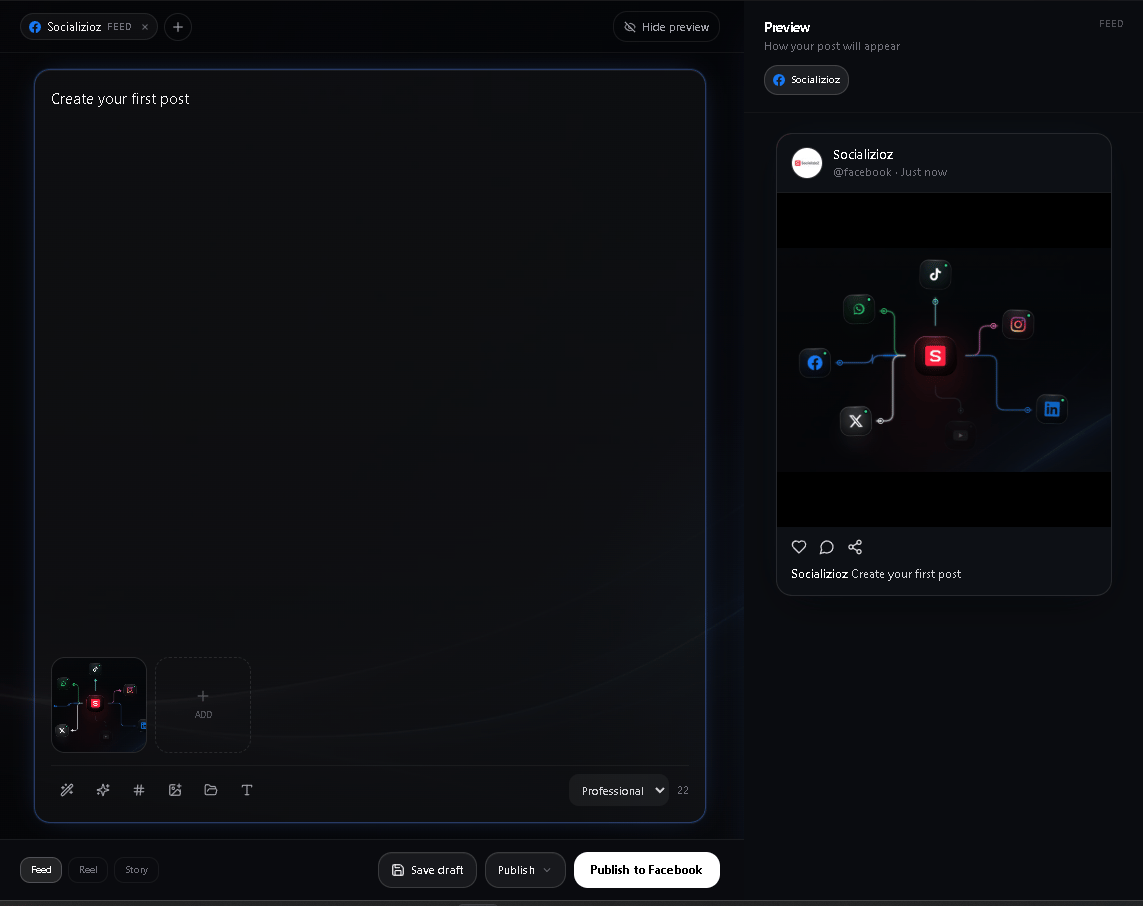
1. Open the Composer
Open Composer on desktop or Create from the mobile tab bar. The Composer is one workbench for destination selection, caption writing, media, content type, destination-specific settings, preview, validation, and the final workflow action.2. Choose where the post should go
Select one or more connected, publish-capable accounts in the Publish to area. When multiple accounts are selected, Socializioz creates independent destination posts. This lets each platform keep its own content type, platform settings, schedule, approval state, and publishing result instead of forcing every destination into one shared record. If an account is connected but unavailable for publishing, review its connection health, plan access, and provider capabilities in Connections.3. Choose the content type
Select the format supported by the destination, such as a Feed post, Reel, Story, video, or another available platform format. The available options depend on the selected account and its real publishing capabilities.Destination formats can have strict media requirements. Reels, Stories, TikTok video, and other video-first formats can require specific media types, dimensions, aspect ratios, or durations.
4. Write the caption
Write or paste the post text in the main canvas. Use the available AI writing actions when you want help drafting, improving, or adapting the copy. Review generated text before publishing, especially prices, dates, factual claims, offers, legal language, or client commitments.5. Add media
Use the media area to:- Upload from your device.
- Choose an existing Media Library asset.
- Use an available AI media workflow.
6. Review the preview
Use the Preview panel to inspect how the selected destination is expected to appear. When multiple accounts are selected, switch the preview destination to inspect each variant. Changing the preview does not silently change which accounts will receive the post. On desktop, Preview can be collapsed to give the Composer more working space. On smaller screens, the interface adapts the editing and preview experience for the available width.7. Complete destination-specific settings
Open Platform settings when the selected destination requires additional publishing information. Different platforms expose different settings. Only the settings required or supported for the selected destination are applied to that destination’s post. Destination-specific settings can differ by platform and content type. Complete the controls shown for each selected account rather than assuming one platform’s settings apply everywhere. TikTok uses its supported publishing handoff rather than pretending every final TikTok choice is completed inside Socializioz.8. Check media fit and validation
Before scheduling or publishing, Socializioz checks the information available for each destination, including:- A valid publish-capable account.
- Required caption or media.
- Media type and content-type compatibility.
- Verifiable dimensions for strict destinations.
- Required aspect ratio, minimum resolution, duration, or file-size rules where applicable.
- Destination-specific required settings.
- Plan publishing access.
- Approval and post-state requirements.
9. Choose what should happen next
Use the action control at the bottom of the Composer.
The actions available can depend on the current post, plan, role, and workspace workflow.
If several destination accounts are selected, the primary action makes that scope visible so you can confirm how many accounts are affected before continuing.
10. Verify the result
Do not treat a click or animation as proof that a provider has published the post. Socializioz distinguishes between outcomes such as:- Succeeded — the supported provider flow confirmed the result.
- Provider processing — the provider accepted the request but final processing is still running.
- Requires user action — an external handoff still needs completion.
- Failed — the request did not complete and needs review.
TikTok publishing
The current TikTok workflow uses TikTok’s official upload-to-inbox handoff.- Attach a valid video.
- Publish or schedule through Socializioz.
- Socializioz sends the video to the connected TikTok account’s inbox.
- Open TikTok to review and complete the final provider-side publishing choices.
Publishing to multiple accounts
A multi-destination Composer session is still safe to edit per platform. Before executing, review:- Every selected account.
- The content type used for each destination.
- Platform-specific settings.
- Media fit.
- Preview.
- Whether the final action is Publish, Schedule, Draft, or Send for approval.
Common first-post problems
Next steps
- Post composer — deeper Composer behavior and validation
- Media Library — organize and reuse assets
- Approvals — review workflows
- Scheduling and calendar — plan future content
- Publishing Hub — verify operational state and recover failures
- Campaigns — organize posts around a marketing objective
- Analytics — review available results