

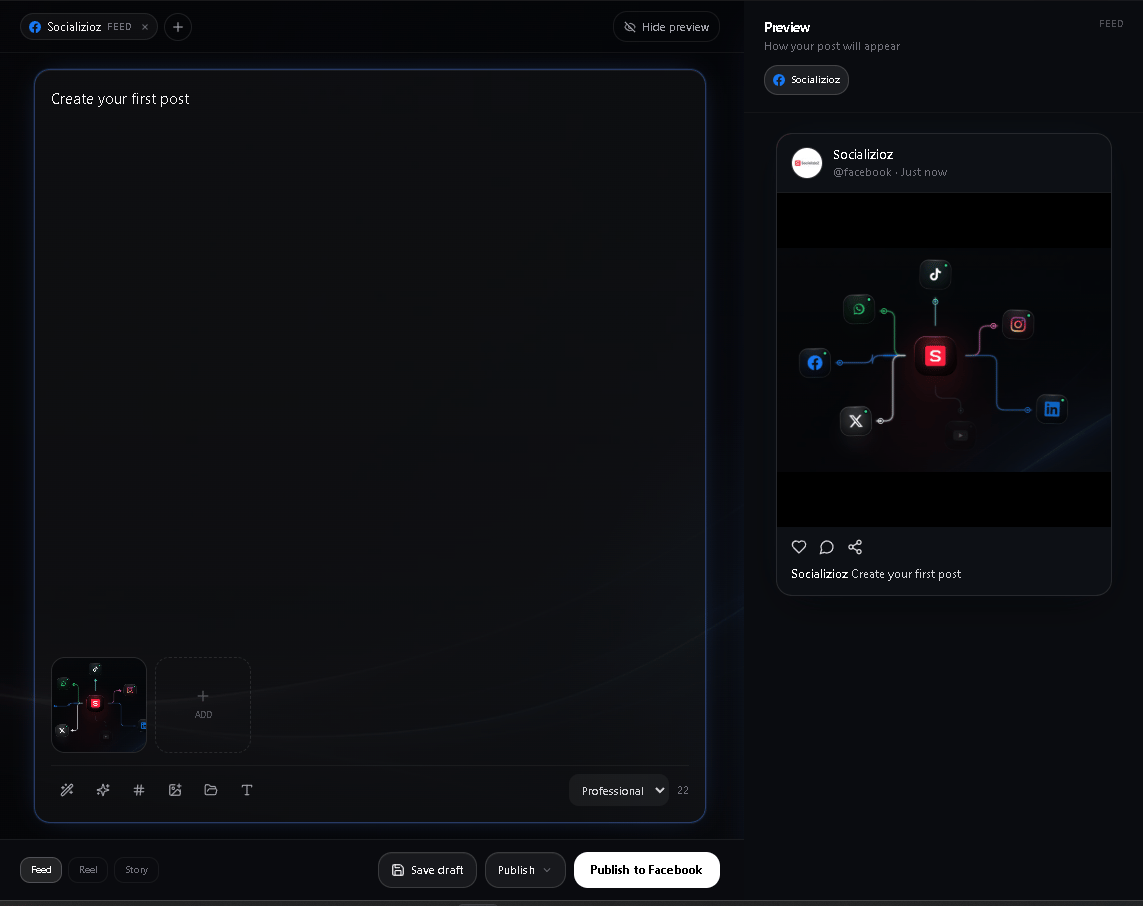
The Post composer is where most content work happens in SocializioZ. Use it to draft captions, attach images or videos, pick the destination account, and either publish now or schedule for later.

When to use it

Use the composer when you need to:
  • Create a new post for one or more connected channels.
  • Turn a draft idea into a ready-to-publish post.
  • Add media from the Media library.
  • Improve wording with AI tools before publishing.
  • Schedule content for a specific date and time.
If you are planning across many days at once, start in the Scheduling and calendar page and open the composer from a calendar slot.

Composer modes

The composer offers two modes — pick the one that matches the task: You can switch modes at any time without losing the caption or media you have already added.

Standard composer layout

The standard composer is organized top to bottom around a single post:
  1. Account picker — select the destination social account.
  2. Content type buttons — appear after the account is chosen (for example, Feed, Story, Reel for Instagram).
  3. Caption editor — supports English and Arabic with automatic text-direction detection. A live character count shows the platform’s limit.
  4. Media strip — preview, reorder, or remove attached files. The + button opens upload, media library, or AI generation.
  5. Assist panel — AI Write, Enhance, and AI Suggest buttons (see Assist panel).
  6. Optional metadata — internal title, destination URL with optional UTM parameters, and campaign assignment.
  7. Action mode switcher and action button — pick Publish, Schedule, or Draft before clicking the action button.
  8. Preflight checklist — appears below the action button when a check fails or warns (see Pre-publish validation).
Each section is collapsible on smaller screens so the caption editor stays in view.

Guided content builder

The guided content builder walks you through five steps so you can publish the same content to multiple accounts in one pass. Use it when a single idea needs to ship to Instagram, Facebook, X, LinkedIn, or TikTok at once.
1

Connect — choose accounts

Select one or more destination accounts. Mixed-platform selection is supported. The wizard adapts the next steps to the platforms you pick.
2

Platform — pick content types

For each selected account, choose the content type (Feed, Story, Reel, Video, or Post) based on what the platform supports. See content types by platform.
3

Media — attach files

Upload from your device, pick from the media library, or generate images and videos with AI. The wizard validates each file against every selected platform’s requirements.
4

Caption — write or generate

Write one caption that ships to every selected account, or use AI Write with the tone and length controls. Tones include Professional, Casual, Friendly, Funny, and Inspiring. Lengths are Short, Medium, or Long.
5

Review — confirm and ship

The review step shows a per-platform preview, the pre-publish validation results, and the action mode (Publish, Schedule, or Draft). One click creates a separate post on each selected platform.
The builder creates an independent post per platform, so you can edit or reschedule one platform without affecting the others.

Content types by platform

The content type buttons that appear in the composer depend on which account you selected. Use this table as a quick reference for what each platform supports. If you select a content type that requires media and none is attached, the action button stays disabled and the pre-publish validation explains what to add.

Assist panel

The Assist panel is the AI writing companion inside the composer. Open it from the wand icon next to the caption editor. It exposes three primary tools:
  • AI Write — generate a brand-new caption from a short prompt or idea.
  • Enhance — refine an existing caption for clarity, tone, and grammar without changing the meaning.
  • AI Suggest — propose hashtags relevant to the caption and selected platform.
Each tool runs against your active brand profile so the output stays on-brand.

AI writing tools

The Assist panel exposes the same AI writing tools that other docs and changelog entries reference. Use the buttons in the toolbar above the caption editor: You can run any tool multiple times until the result feels right. Each generation respects the tone and length selectors and applies your campaign’s blocked terms automatically.

Caption length selector

When you use AI Write, the Assist panel includes a length selector alongside the tone selector to control how much text the AI generates. The same length options appear in the guided content builder’s advanced caption settings.

Tone control

Tone applies to AI Write and Enhance results. The standard composer ships with Professional, Casual, and Friendly. The guided content builder adds Funny and Inspiring. Pick the tone that matches the audience you are writing for.

Resolution hints

When you attach a video or image, the composer overlays a resolution badge on the media preview to flag platform compatibility before you publish. Hovering or tapping the badge expands a tooltip with the exact reason and the video resolution reference link.

Video resolution reference

Use this table to verify a video meets the platform’s published requirements before attaching it. Values reflect the limits the composer checks against. If your video falls outside any column for the target platform, the resolution hints badge turns red and the pre-publish validation blocks publishing.

TikTok advanced settings

TikTok requires a few publishing-specific fields that other platforms don’t. When you select a TikTok account, a dedicated settings panel appears in the composer. Every field below must be set before publishing.

TikTok settings validation

The publish button stays disabled until every required TikTok field is set. Common blockers: The pre-publish validation checklist surfaces each blocker with a direct jump to the field.

Pre-publish validation

Before you publish, the composer runs a real-time preflight checklist below the action button. Each check shows a clear pass, fail, or warning status so you can resolve issues before clicking the action button. The checklist validates:
  • Account selected — at least one destination account is chosen.
  • Content type selected — required for platforms with multiple types (Instagram, Facebook).
  • Caption present — required where the platform expects text.
  • Media present — required for Instagram (any type), Stories, Reels, and TikTok.
  • Media type matches content type — for example, video for Reels and TikTok; image or video for Feed.
  • Resolution and duration — see video resolution reference and resolution hints.
  • Schedule time in the future — only for the Schedule action mode.
  • TikTok required fields — see TikTok settings validation.
  • Blocked terms — see blocked terms.
A red status (fail) keeps the action button disabled. An amber status (warning) lets you publish but flags a potential issue. Drafts skip the checklist so you can save unfinished work — see managing drafts.

Preflight badges on the calendar

Scheduled posts also display preflight badges in the schedule calendar. Click a badge to jump back to the composer with the failing check pre-selected.

Blocked terms

If your active campaign defines blocked terms, the composer checks every caption against that list before publishing.
  • Real-time matching — blocked terms are highlighted in the caption editor as you type.
  • AI tools respect the list — AI Write, Enhance, and AI Suggest avoid producing blocked terms.
  • Hard block on publish — if a blocked term remains, the pre-publish validation fails and the action button stays disabled.
To resolve a block, edit the caption to remove or rephrase the flagged term, or update the campaign’s blocked terms list in campaign settings.

Managing drafts

Drafts let you save in-progress work without running the full preflight. They are useful for team review, parking ideas, and resuming work later. To save a draft:
  1. In the action mode switcher, select Draft.
  2. Click the action button. The draft is saved to your workspace and appears in the publishing hub and the scheduling calendar under the Draft filter.
To resume a draft, open it from the hub or the calendar — it loads back into the composer with every field, attachment, and setting preserved. Switch the action mode to Publish or Schedule when you are ready to ship.
Drafts skip pre-publish validation on save but the same checks still run when you switch the action mode to Publish or Schedule.

Action modes

The action mode switcher at the bottom of the composer determines what happens when you click the action button. The schedule picker is timezone-aware. It uses the timezone configured in workspace settings or your browser timezone if no workspace timezone is set.

Publishing errors

If a post fails after you click the action button, the composer surfaces a structured error toast with three pieces of information you can act on. For the full mapping of error categories to fixes, see troubleshooting — publishing failures. To open support with the error pre-filled, click Fix with AI Support in the toast.

Optional metadata

Below the caption editor, you can add metadata that does not appear in the post itself but helps with internal tracking and reporting:
  • Internal title — a short label for the post, used in dashboards and search.
  • Destination URL — the link your call to action points to. Add UTM parameters here if you want to track clicks in your analytics tool. See webhooks and UTM guidance for examples.
  • Campaign — assign the post to an active campaign for grouped reporting and shared blocked terms.

Important notes

  • Account permissions and platform rules can block publishing even if the composer’s preflight passes.
  • Media requirements vary by platform and content type — see content types by platform and video resolution reference.
  • If you work in multiple languages, create a separate post per language so audience targeting and analytics stay clean.
  • Drafts are useful for team review before final scheduling or approval.

Troubleshooting

Publish button is unavailable

Common causes: Fix: review the preflight checklist below the action button and resolve the failing check.

Media upload fails

Common causes: Fix: re-export to a supported format and size, then upload again. See the media library for upload limits.

Post fails after clicking publish

Common causes:
  • Platform API outage — check system status.
  • Expired permissions — reconnect the account from connections.
  • Platform-level policy or validation rejection.
Fix: open the failed post from the scheduling calendar, read the publishing error details, retry, or rewrite the post. See troubleshooting — publishing failures for the full reference.
Last modified on May 16, 2026