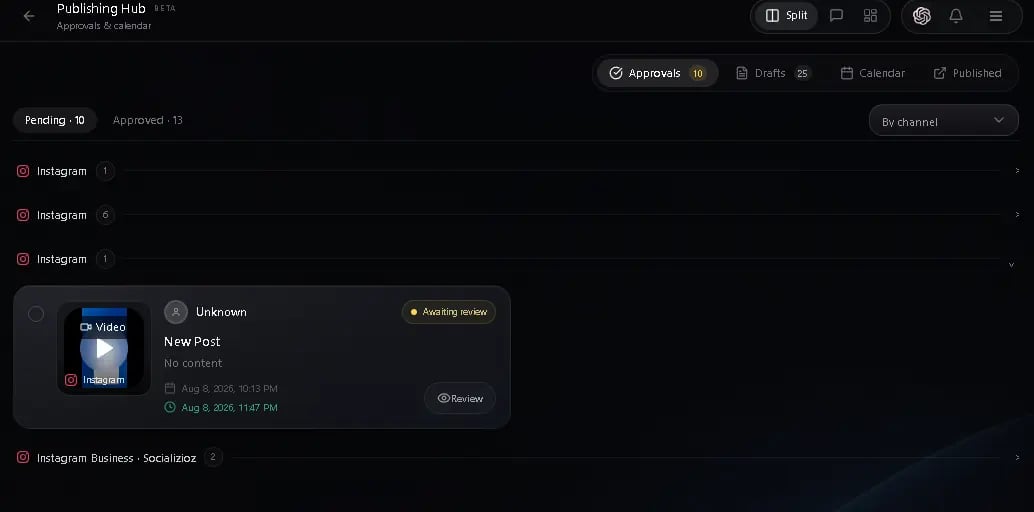
The approvals workflow lets you review posts before they are published. This is useful for teams where content needs sign-off before going live, or when the AI assistant creates posts autonomously that require human review.
Approvals are available on Professional and Enterprise plans.

How approvals work

When a post is created with approval required — either by a team member or by the AI assistant — it enters a pending state. The post does not publish until someone reviews and approves it. Any workspace member who can view posts in the workspace can review, approve, or reject pending content.

Who can approve posts

All workspace members (Owner, Admin, and Member roles) can review and approve posts within their workspace. Visibility is scoped to posts in the active workspace — you only see posts that belong to your current workspace.

Submitting a post for approval

When creating a post in the composer, you can explicitly send it for approval:
  1. Write your post and select destination accounts.
  2. Click Approval in the composer footer to submit the post with a pending_approval status.
The post appears in the Approvals tab for your team to review.

Auto-approve toggle

If you schedule a post and want to skip the approval queue, enable the Auto-approve toggle in the composer. This toggle appears when you select a schedule time and a destination account. When enabled, the post goes directly to scheduled status and publishes at the scheduled time without waiting for a review.
Use auto-approve for routine posts that do not need team sign-off. Leave it off for high-visibility content that benefits from a second pair of eyes.

Reviewing pending posts

1

Open the publishing hub

Navigate to the Publishing page from the workspace sidebar. The publishing hub has three tabs: Approvals, Calendar, and Published.
2

Go to the approvals tab

The Approvals tab shows all posts waiting for review. Each post card displays the caption, attached media, target platform, and scheduled date.
3

Review the post

Click a post to see its full details, including media previews and platform-specific settings.
4

Take action

You can approve, reject, reschedule, or publish the post immediately.

Review dialog

Clicking Review on a post opens a detail dialog where you can inspect the content before making a decision. The dialog includes:
  • Media preview — full-size image or video with carousel navigation for multi-asset posts
  • Title — editable post title field
  • Account — the connected account the post targets, with an option to change it
  • Campaign — the associated campaign, if any
  • Caption — full post caption text
  • Schedule time — date and time picker with timezone awareness
  • Reviewer notes — add notes explaining your decision (visible to the post creator)

Available actions

From the review dialog, choose one of the following:
  • Approve — the post moves to scheduled status and publishes at its scheduled time. You can adjust the schedule before approving.
  • Reject — provide feedback in the reviewer notes explaining why the post was rejected (see below).
  • Publish now — skip the schedule and publish the post immediately.

What happens when a post is rejected

When you reject a post:
  1. The post status changes to rejected. It is removed from the pending approvals list.
  2. An approval record is created with your reviewer notes and email, so there is a clear audit trail.
  3. The post creator receives a notification (if they have the Approval needed notification enabled in their settings).
  4. The rejected post remains in the system. The creator can edit the post, address the feedback in the reviewer notes, and resubmit it for approval.
Rejected posts are not deleted. The original creator can revise and resubmit them through the composer.

Approval notifications

Socializioz sends notifications at key points in the approval workflow:
  • Approval needed — when a post is submitted for review, team members receive an in-app notification.
  • Post approved — when a post is approved, the creator is notified with the scheduled publish time.
  • Post rejected — when a post is rejected, the creator is notified so they can revise it.
You can toggle the Approval needed notification on or off in Settings > Notifications. See notifications for details.

Bulk approve

To approve multiple posts at once, select them using the checkboxes on each post card, then click Bulk Approve in the header. Bulk-approved posts are scheduled to publish 2 hours from the time of approval.

Filtering

Use the filters at the top of the approvals list to narrow results by platform or search for specific posts by caption text.

Troubleshooting

ProblemSolution
No posts appear in the approvals tabApprovals require the Professional or Enterprise plan. On lower plans, posts skip the approval step and go directly to scheduled status. Check your plan in billing
A post was modified after approvalChanges made to an approved post (such as editing the caption or swapping media) do not reset its approval status. The post publishes with the latest content at the scheduled time. Review changes in the post detail sheet before the scheduled publish time
Bulk approve set the wrong scheduleBulk-approved posts are always scheduled 2 hours from the time of approval. To publish at a different time, approve posts individually and adjust the schedule in the review dialog
Rejected post is missingRejected posts are removed from the pending approvals list but are not deleted. The original creator can find and edit the post from the schedule calendar by filtering for rejected status
I cannot see the approval button in the composerThe approval action only appears when your workspace is on the Professional or Enterprise plan. On lower plans, use Publish now or Schedule instead

Published posts

The Published tab in the publishing hub shows a history of all posts that have been published. You can view engagement metrics, filter by platform or date range, and open the live post on the platform. See published posts for details.