

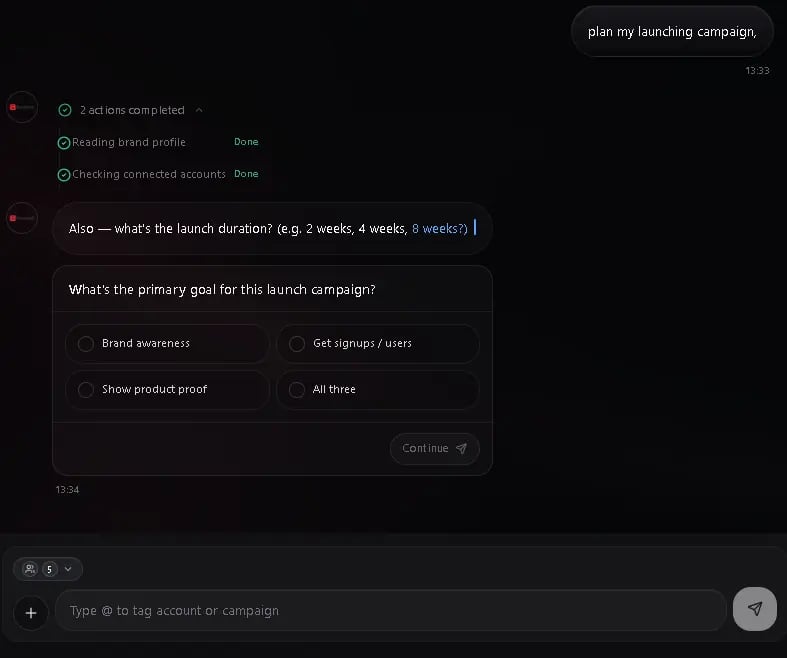
The AI chat assistant is a conversational interface that helps you manage your social media workflow. You can create content, check analytics, manage campaigns, and perform actions through natural language.
AI chat is currently in beta. You may encounter occasional inaccuracies or unexpected behavior. The feature is under active development — functionality and responses will continue to improve.

Getting started

1

Open the AI chat

Click the chat icon in the workspace sidebar, or expand the resizable chat panel on desktop.
2

Set an account context (optional)

Use /accounts or the account context bar to scope the conversation to a specific social account. This helps the assistant tailor its responses.
3

Ask a question or give a command

Type a natural language request like “Create an Instagram post about our summer sale” or “Show me my analytics for the last 7 days.”
4

Review and act on suggestions

The assistant returns results with actionable next steps. Click any suggestion to continue the workflow.

What you can do

  • Ask the assistant to create or refine captions
  • Generate images and videos with AI
  • Schedule and publish posts
  • Check analytics and performance data
  • Create and manage campaigns
  • Get suggestions for the best time to post
  • Generate hashtags for your content
  • Capture website screenshots for research or inspiration
  • View interactive mind maps for campaign plans
  • Browse TikTok video galleries with engagement metrics

Slash commands

Type / in the chat input to open a searchable command palette. You can filter commands by typing part of the name.
CommandDescription
/accountsOpen the accounts panel to choose an account context
/tagTag a connected account or campaign with @
/attachOpen the media and file attachment menu
/imageGenerate an AI image and attach it
/newStart a new conversation
/detailsView details of the current conversation (only appears when a conversation is active)

Quick action bar

Below the chat input, a row of quick action buttons gives you one-tap access to frequent workflows. Each button sends a pre-written prompt to the assistant:
ActionWhat it does
Run AuditRuns a growth audit on your connected accounts and suggests improvements
Plan ContentCreates a 7-day content plan for your social media accounts
Generate ImageGenerates a professional marketing image for your business
Write CaptionWrites an engaging caption with hashtags for your next post
Publish NowWalks you through publishing a post to your connected accounts
View AnalyticsShows analytics and performance insights for your recent posts
On mobile, the actions appear as a horizontally scrollable row. On desktop, they display in a grid layout.

Account context

You can scope a conversation to a specific social account using /accounts or the account context bar. When an account is selected, the assistant focuses its responses and actions on that account.

Mentioning accounts and campaigns

Type @ followed by a name to tag a connected account or campaign in your message. This gives the assistant context about which account or campaign you are referring to.

Attaching files

Attach images, videos, or other files to your messages using the /attach command or by dragging and dropping files into the chat. You can also select files from your media library.

Smart suggestions

After the assistant completes an action, it suggests relevant next steps. For example:
  • After generating an image: schedule the post, generate captions, or add hashtags
  • After scheduling a post: view the calendar, create another post, or check approvals
  • After analyzing performance: get improvement tips or create new content

Website screenshots

Ask the assistant to capture a screenshot of any public website. This is useful for competitor research, gathering visual inspiration, or saving a reference. Screenshots render inline in the conversation with options to: Ad blockers and cookie banners are removed automatically so you get a clean capture.

Campaign mind maps

When you ask the assistant to generate a campaign plan, it renders an interactive mind map alongside the text output. The mind map includes expandable nodes for:
  • Brand analysis — your positioning and strengths
  • Competitor insights — follower counts, posting frequency, and content themes
  • Market trends — trending hashtags and topics in your industry
  • Posting schedule — recommended days, times, and content types
Click any node to expand it and see the underlying data. The mind map complements the day-by-day content calendar produced by the AI campaign planner. When the assistant retrieves TikTok videos — yours or a competitor’s — they appear in a scrollable gallery. Each video card shows views, likes, and engagement metrics so you can compare performance at a glance.

Media URL previews

When you share a public image or video URL in the chat, the assistant displays an inline preview. From the preview you can save the file to your media library or attach it to a post.

Multi-agent transparency

For complex tasks, the assistant delegates work to specialist agents — such as a Growth Strategist, Creative Agent, or Content Optimizer. When this happens, expandable cards appear in the conversation showing:
  • Which agent is handling each part of the task
  • The functions being called and their results
This gives you visibility into how the AI reaches its recommendations.

AI campaign planner

The AI assistant can generate a full content calendar for a campaign. Open the campaign planner from the analytics page or ask the assistant to plan a campaign in chat. Fill in the following details:
FieldDescriptionRequired
Campaign goalWhat you want to achieve, e.g. “Increase brand awareness”Yes
Target audienceWho the content is for, e.g. “Young adults 18–35”No
LocationGeographic focus, e.g. “Dubai, UAE”No
IndustryYour business category, e.g. “Car rental”No
TimeframeWeekly (7 days) or Monthly (30 days)Yes
PlatformsWhich platforms to include — Instagram, Facebook, TikTok, LinkedInYes
Content mixToggle content types on or off — Reels/Short Videos, Stories, Carousels, Static ImagesYes
The AI generates a plan that includes:
  • A campaign name and total post count
  • Strategic insights and advice
  • A day-by-day content calendar where each entry includes a post idea, suggested caption, media prompt, hashtags, and SEO keywords
You can copy any caption directly from the plan. The planner is an ideation tool — to schedule posts from the plan, create them individually in the composer.

Workspace chat panel

On desktop, the AI chat is available as a resizable panel docked to the left side of your workspace layout. The chat panel and the canvas view (schedule, media, analytics, etc.) share the screen side by side.

Persistent across views

The chat panel stays open as you switch between canvas views. You can browse your schedule, review analytics, or manage campaigns while keeping the same conversation visible. Your chat history and any in-progress messages are preserved when you navigate.

Resizing

Drag the divider between the chat panel and the canvas to adjust proportions. The chat panel accepts widths between 20% and 50% of the screen. Your preferred size is saved automatically and restored the next time you open the workspace.

Standalone chat page

The same AI chat is also available as a full-screen page (accessible from the sidebar or bottom tab bar on mobile). Both the panel and the full-screen page share the same conversations and history — switching between them picks up where you left off.

Mobile

On mobile, the chat panel is not available. Instead, use the Chat tab in the bottom navigation bar to open the full-screen AI chat. See mobile experience for details.

Conversations

Each chat is a separate conversation stored independently so you can keep topics organized.

Creating a conversation

Click the New Chat button in the conversation list, or use the /new slash command. A dialog asks you to name the conversation. Type a name and press Enter or click Create. If you have no conversations yet, a Start new chat button appears in the empty state and creates one without asking for a name.

Browsing conversations

Open the conversation list from the Chats menu in the header. On mobile, the list opens as a bottom sheet. Each conversation shows:
  • Name — the conversation title, or “New Chat” if unnamed
  • Last message preview — the first 50 characters of the most recent message
  • Relative timestamp — when the conversation was last updated
  • Message count badge — total messages in the conversation
  • Tools badge — appears if the conversation includes AI tool calls
  • Error badge — appears if any tool call in the conversation failed
Conversations are sorted newest-first by their last update time.

Searching conversations

Use the search bar at the top of the conversation list to filter by name or message content. Results update as you type.

Filtering conversations

Two filter tabs sit below the search bar:
  • All — shows every conversation
  • With Tools — shows only conversations where the AI used tools (image generation, scheduling, etc.)

Deleting conversations

Enter select mode by clicking the checkbox icon in the conversation list header. Tap conversations to select them (they highlight in red), then click the trash icon to delete. A toast confirms how many conversations were removed. Deleted conversations are removed permanently.

Conversation details

Use the /details slash command or click the info icon to open the conversation details panel. It shows:
  • Conversation name and creation date
  • Last updated timestamp
  • Message count
  • Recent actions — the last 10 AI tool calls with status indicators (success, error, running, or stopped)
  • Conversation ID — a copyable reference for support tickets

Composing messages

Text input

Type your message in the text area at the bottom of the chat. The input grows as you type (up to a maximum height) and then becomes scrollable. Press Enter to send, or Shift + Enter to add a new line. A character counter appears on desktop showing your current length out of 2,000 characters. The counter turns red when you exceed the limit. When the input is empty, rotating placeholder hints cycle every few seconds to help you get started:
  • “Type your message…”
  • “Try / for quick commands”
  • “Type @ to tag account or campaign”

Attaching files

You can attach media to your messages in several ways:
MethodHow to use it
Media libraryClick the attachment button and choose Media Library to pick from existing assets
Upload from deviceClick the attachment button and choose Upload from device to select a file (JPEG, PNG, WebP images or MP4 video, up to 50 MB)
Import from URLClick the attachment button and choose Import from URL to import media from a web address
Drag and dropDrag a file from your computer into the chat area — a drop zone overlay appears
Paste from clipboardPaste an image directly from your clipboard into the chat input
Attached files appear as a thumbnail strip above the text input. Click the X on any attachment to remove it before sending.
Only images are sent to the AI assistant. If you attach a video, a message lets you know it cannot be included in the conversation.

URL media detection

When you paste a public image or video URL into your message, the chat detects it and shows an inline preview card. From the card you can:
  • Save the file to your media library
  • Attach it to your message
  • Remove the preview

Mentioning accounts and campaigns

Type @ followed by a name to open the mention panel. It shows your connected social accounts and active campaigns (up to 8 results), filtered as you type. Select an item to add it as a mention badge above the text input.
  • Each badge shows the name with a type icon (calendar for campaigns, target for accounts)
  • Click a badge to remove it before sending
  • When you send the message, mentions are included as context so the assistant knows which account or campaign you are referring to

Account context

You can scope a conversation to a specific social account so the assistant focuses its responses on that account.

Selecting an account

Click the account selector button in the composer bar (it shows the number of connected accounts). On desktop, a dropdown menu opens. On mobile, a bottom sheet appears. Accounts are grouped by platform in this order: Instagram, Facebook, TikTok, X, LinkedIn, Telegram.

Account context bar

On desktop, when an account is selected, a context bar appears in the chat header showing:
  • Profile picture and platform icon
  • Account name and @username
  • Platform label (e.g., “Facebook Page”, “Instagram Business”)
  • Follower count (formatted with K/M suffixes)
  • Switch and Clear buttons to change or remove the context

Campaign context

You can also set a campaign context via the chat. When a campaign is selected, a campaign context bar appears in the header showing the campaign name with a Clear button. The assistant uses this context to tailor its responses to the specific campaign.

Smart suggestions

After the assistant completes an action, contextual next-step suggestions appear below the response. The suggestions adapt based on what just happened:
After this actionSuggested next steps
AI image generatedSchedule the post, generate captions, add hashtags
Caption generatedAdd hashtags, more variations, best time to post
Post scheduled or createdView approvals, create another post, view calendar
Accounts listedCreate image, analyze performance, create campaign
Campaign created or listedCampaign details, weekly plan, campaign chat
Analytics shownImprovement tips, create new content
Error or failureTry again, check accounts
Click any suggestion to populate the chat input with the corresponding prompt. If no suggestions are applicable, the section is hidden.

Troubleshooting

ProblemResolution
Assistant does not respondCheck the system status page for AI service availability.
Responses seem genericSet an account context with /accounts and configure your brand profile for more tailored responses.
Generated content does not match brand voiceUpdate your tone, audience, and AI personality settings in workspace settings.
File attachment failsEnsure the file is a supported format. On mobile, use the attach button instead of drag-and-drop.
Slash commands not appearingType / in the chat input field. Commands require at least one character after the slash to filter.
Deleted conversation still appearsRefresh the page. Deleted conversations are removed from the local cache and should not reappear after a reload.
Mention panel shows no resultsYou need at least one connected account or active campaign. Connect an account from the connections page.
Drag-and-drop not workingDrag-and-drop requires a desktop browser. On mobile, use the attachment button instead.