

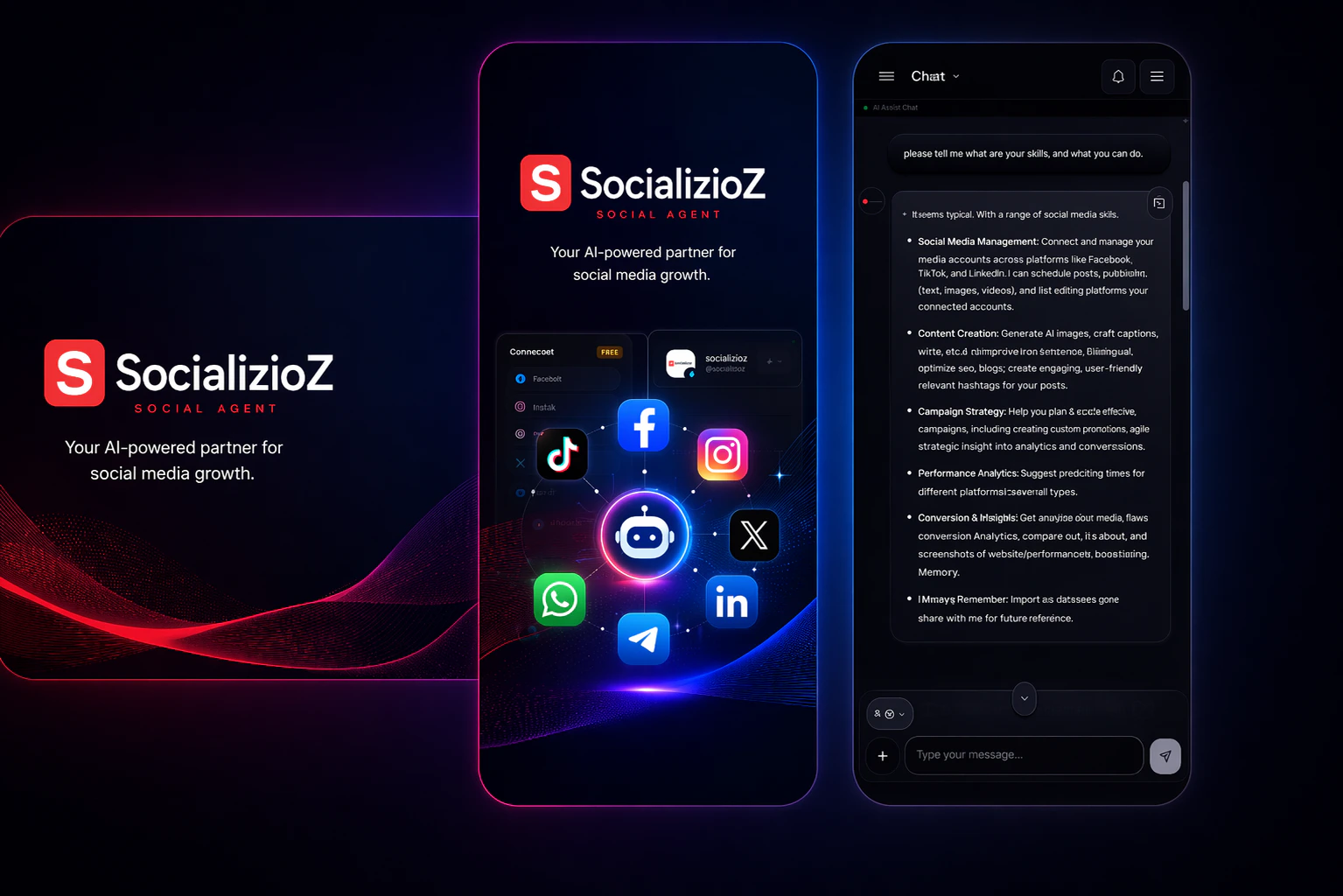
Android app

Installing on Android
1
Open the Play Store
Open the Google Play Store on your device and search for Socializioz, or tap the badge above to open the listing directly.
2
Install the app
Tap Install and wait for the download to complete. The Play Store shows the current download and storage requirements for your device.
3
Sign in
Open Socializioz and sign in with your existing credentials. If this is your first time, the activation journey guides you through the required setup and first Agent handoff.
Use the compatibility information shown in the current Google Play listing for device and Android-version requirements. The Android app uses the same Socializioz account as the web app.
Updating the Android app
The Play Store handles updates automatically. To check for updates manually:- Open the Play Store and search for Socializioz.
- If an update is available, tap Update.
- Relaunch the app after the update completes.
iOS app
 The iOS app is available on the Apple App Store and uses the same Socializioz account as web and Android.
Installing on iOS
1
Open the App Store listing
On your iPhone or iPad, open the App Store and search for Socializioz, or tap the link above.
2
Install the app
Tap Get (or the cloud download icon if you installed it before), then complete Face ID/Touch ID/passcode confirmation if prompted.
3
Sign in
Open Socializioz and sign in with your existing credentials.
Add to home screen (PWA)
You can install Socializioz as a progressive web app (PWA) for a native-like experience without the browser toolbar. This works as a standalone option on Android Chrome or as a fallback on iOS when the App Store is unavailable.iOS (Safari)
1
Open Socializioz in Safari
Navigate to socializioz.com in Safari. This option is not available in Chrome or other iOS browsers.
2
Tap the share icon
Tap the share icon (square with an upward arrow) in the Safari toolbar at the bottom of the screen.
3
Tap Add to Home Screen
Scroll down in the share sheet and tap Add to Home Screen. You can rename the shortcut or keep the default name.
4
Tap Add
Tap Add in the top-right corner. The Socializioz icon appears on your home screen.
Android (Chrome)
1
Open Socializioz in Chrome
Navigate to socializioz.com in Google Chrome.
2
Open the browser menu
Tap the three-dot menu icon in the top-right corner of Chrome.
3
Tap Add to Home screen
Select Add to Home screen (or Install app if Chrome detects the PWA manifest). Confirm the name and tap Add.
4
Open from your home screen
The Socializioz icon appears on your home screen. Tap it to launch the app in standalone mode without the browser address bar.
After installing the PWA
Once installed, the PWA opens in its own window with a dark-themed status bar and no browser toolbar. You use the same account as the web app — no need to sign in again or reconnect social accounts.The PWA requires an internet connection. There is no offline mode or local data caching. If you experience stale content, force-close the app from your app switcher and reopen it. See Troubleshooting for refresh, connectivity, and app-update recovery steps.
Web app
Open web app
Launch Socializioz in your browser — no installation required.
Supported browsers
For the best experience, use the latest version of:- Google Chrome (recommended)
- Safari (macOS and iOS)
- Microsoft Edge
- Firefox
Troubleshooting
What to do after installing
- Create your workspace if this is your first time.
- Connect a social account so the Agent can help plan, create, and schedule content within your plan and approval rules. You can also work directly from the composer.
- Open the Socializioz Agent and ask it to plan, create, schedule, publish (with your approval), or analyze content — or explore the workspace overview to work hands-on.