

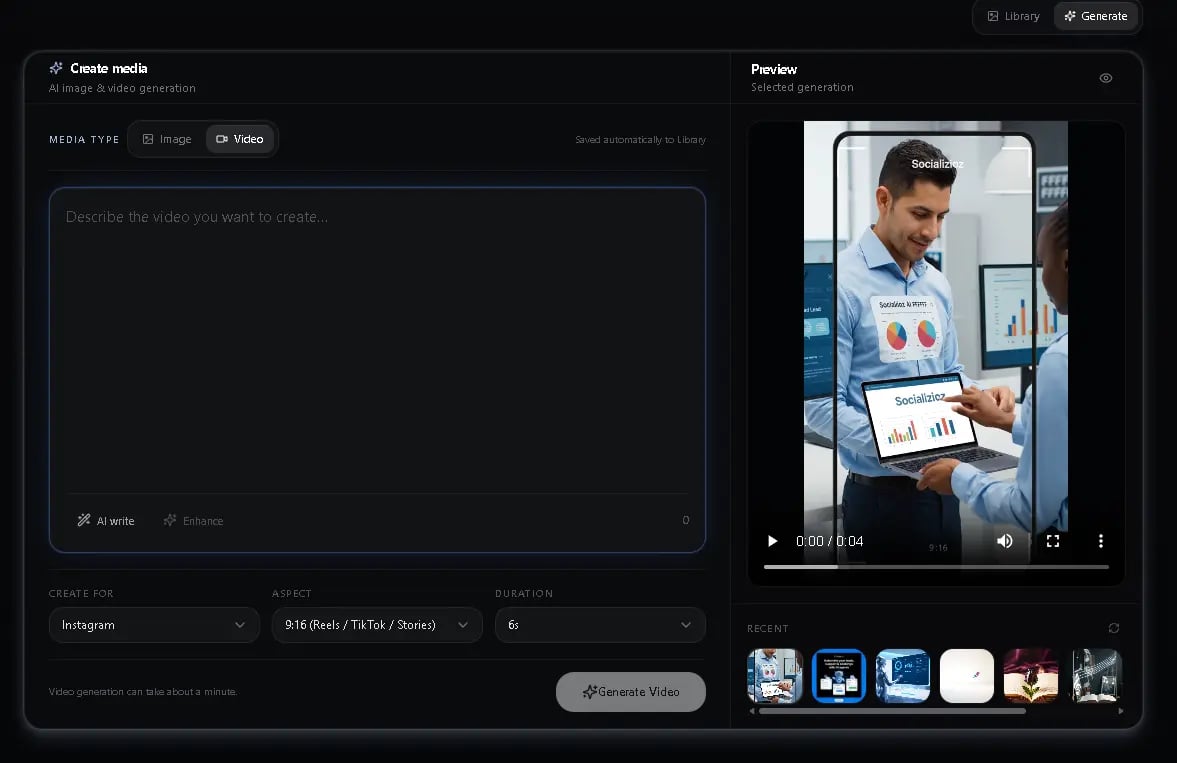
Socializioz includes AI tools for generating text, images, and videos. You can access these from the media library, the composer, or through the AI chat assistant.

Caption generation

Generate captions tailored to a specific platform and tone.
1

Open the composer

Navigate to the composer and start a new post.
2

Click AI Write

In the editor toolbar, click the AI Write button to open the caption generation panel.
3

Configure options

Select the target platform, tone (Professional, Casual, or Friendly), and length (Short, Medium, or Long).
4

Generate

Click Generate to create a caption. The result is inserted into the editor where you can review and edit it.
The AI can also generate hashtags for your captions using the Generate Hashtags button in the composer toolbar.
Set up a brand profile in your workspace settings so generated captions match your brand voice.

Caption enhancement

If you already have a draft caption, use the Enhance tool in the composer toolbar to improve it. The AI refines your wording, grammar, and tone while preserving your original idea. This is different from caption generation, which creates a new caption from scratch.

Prompt enhancement

The AI content generation panel includes an Enhance button next to the prompt field. When you click it, the AI rewrites your simple description into a detailed, platform-optimized prompt. The enhancement considers:
  • Your target platform (e.g. Instagram, TikTok)
  • Content language
  • Industry context from your workspace settings
This helps you get better results from image and video generation without writing complex prompts yourself.
This is different from the Enhance tool in the composer, which improves existing caption text. The prompt enhancement here optimizes your AI generation prompts.

Image generation

Create images from a text prompt with options for aspect ratio and visual style.
1

Open the Generate tab

Go to the media library and switch to the Generate tab, or use the /image command in AI chat.
2

Write a prompt

Describe the image you want. Click Enhance to let the AI expand your description into a detailed prompt.
3

Choose aspect ratio and style

Select an aspect ratio and a style preset from the options below.
4

Generate

Click Generate. The image is saved to your media library automatically.

Aspect ratios

RatioOrientationBest for
1:1SquareInstagram feed, general use
4:5PortraitInstagram feed
16:9LandscapeFacebook, LinkedIn, X

Style presets

  • Realistic — photographic style
  • Illustration — drawn or illustrated look
  • Minimal — clean, simple design
  • Cinematic — dramatic, film-like aesthetic
Generated images are automatically saved to your media library.

Video generation

Generate short videos from text prompts or reference images. Socializioz supports two video generation providers.
1

Open the Generate tab

Go to the media library and switch to the Generate tab.
2

Select video mode

Choose Video as the content type, then pick a provider (Runway or Hedra) and model.
3

Write a prompt or attach a reference image

Describe the video you want. For image-to-video models like Gen-4.5, attach a reference image. For Hedra character models, configure voice and text-to-speech settings.
4

Set duration and resolution

Choose the video duration and resolution based on the model’s supported options.
5

Generate

Click Generate. Video generation takes longer than images — the asset appears in your library with a Processing status and updates to Ready when complete.

Runway models

ModelTypeResolutionsDurationAudioBest for
Gen-4.5Image to video1280x720, 720x12802-10 secNoGeneral social videos, balanced quality and speed
Veo 3.1Text to videoUp to 1920x10804, 6, 8 secYesHigh visual detail
Veo 3.1 FastText to videoUp to 1920x10804, 6, 8 secYesQuick drafts and iteration
Veo 3Text to videoUp to 1920x10804, 6, 8 secYesReliable baseline quality

Hedra

Hedra is an alternative video generation provider with support for character-based videos and voice synthesis.
  • Text-to-video — generate videos from a text prompt with configurable aspect ratio, resolution, and duration
  • Character models — create talking-head style videos using ElevenLabs text-to-speech with selectable voice options
  • Keyframe support — use start and end reference images to guide the video generation
Hedra videos use a credit-based system. Estimated cost is based on video duration.
PlanMonthly video credits
Free100
Starter500
Professional2,000
Generated videos are saved to your media library and can be used in posts immediately.

AI campaign planner

The AI can generate a full content calendar for a campaign, including post ideas, captions, media prompts, hashtags, and SEO keywords. You can access the planner from the analytics dashboard on Professional and Enterprise plans, or ask the assistant to plan a campaign in chat. See AI chat assistant — AI campaign planner for the full list of inputs and outputs.

Usage limits

AI generation counts toward your plan’s monthly limits:
ResourceFreeStarterProfessionalEnterprise
AI images5/month50/month200/monthUnlimited
AI videos1/month15/month50/monthUnlimited
When you reach your plan’s monthly limit, generation requests are blocked until the next billing cycle. Upgrade your plan for higher limits.

Troubleshooting

ProblemResolution
Generation fails or times outCheck the system status page. AI services may be temporarily unavailable. Try again in a few minutes.
Image does not match promptUse the Enhance button to create a more detailed prompt. Adding specific details about composition, lighting, and subject produces better results.
Video stuck in ProcessingVideo generation can take several minutes. Refresh the page and check the media library status filter. If it stays stuck for more than 10 minutes, try generating again.
”Limit reached” errorYou have used all of your plan’s monthly AI generation credits. Check your usage in Settings > Billing or upgrade your plan.
Generated caption does not match brandConfigure your brand profile with tone, audience, and example text so the AI can match your voice.