

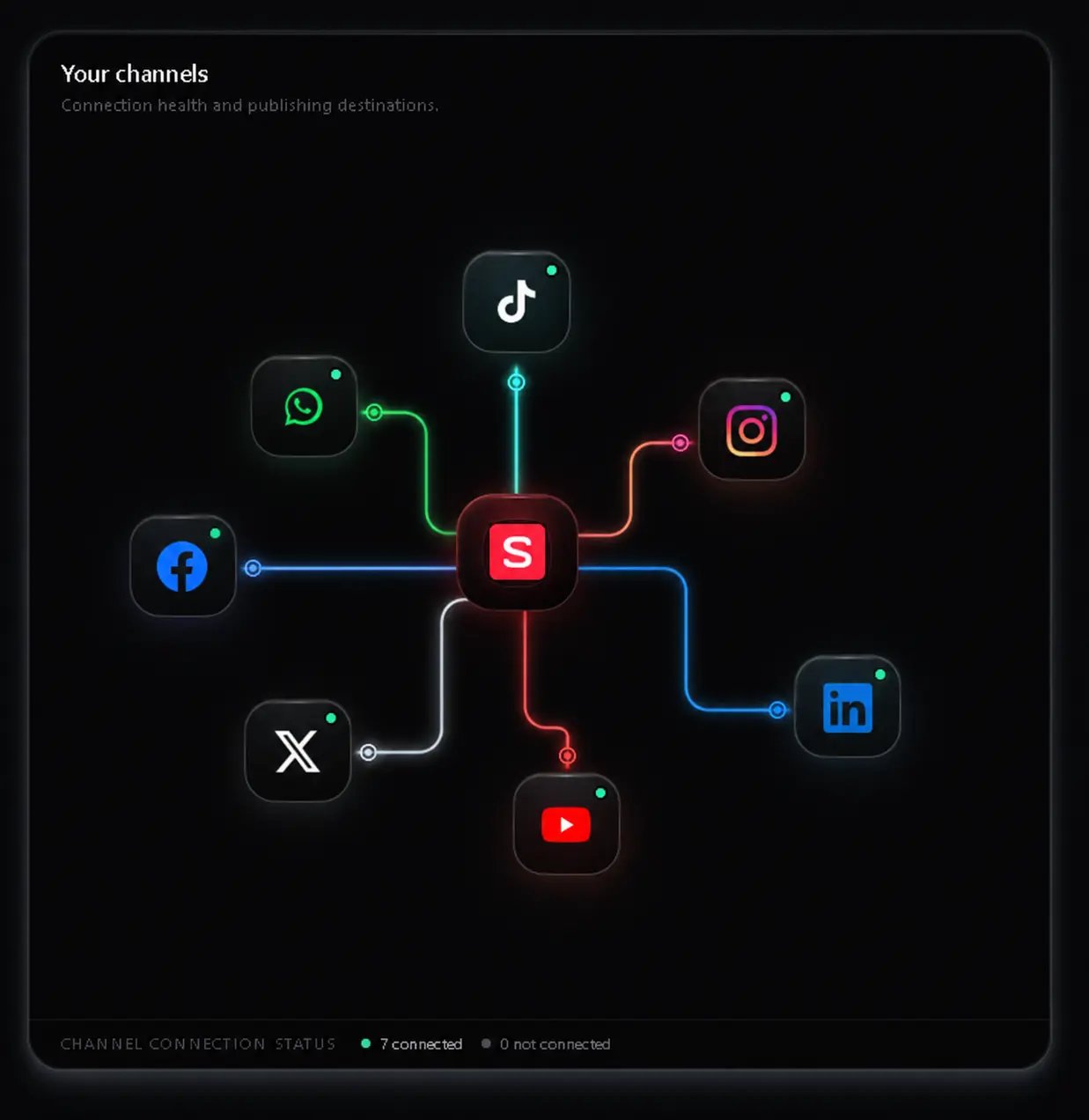
The connections page is your account management hub. Open it from the Connections link in the sidebar to see all connected social accounts, their health status, and available actions. While the connecting accounts guide covers initial setup and OAuth flows, this page focuses on day-to-day account management.Documentation Index
Fetch the complete documentation index at: https://docs.socializioz.com/llms.txt
Use this file to discover all available pages before exploring further.
Dashboard layout
The connections page displays each connected account as a card with:- Profile picture and display name from the social platform
- Platform icon indicating Facebook, Instagram, TikTok, X, or LinkedIn
- Health status dot — green (healthy) or amber (needs attention)
- Quick actions — create a post, view details, reconnect, or disconnect
Account health monitoring
Each account’s health status reflects whether Socializioz can currently publish to it and retrieve data from it.| Status | Indicator | Meaning |
|---|---|---|
| Healthy | Green dot | Token is valid, all permissions granted, ready to publish |
| Needs reconnect | Amber dot | Token has expired or permissions are missing — reconnect required |
Automatic token refresh
Meta (Facebook and Instagram) tokens are refreshed automatically in the background. Socializioz checks token health hourly while the app is open and attempts to refresh tokens within 7 days of their expiry. If automatic refresh fails after 3 attempts, the account switches to amber status and you need to reconnect manually. Other platforms (TikTok, X, LinkedIn) use long-lived tokens that do not require automatic refresh. When these tokens eventually expire, the account shows an amber status and you reconnect through the standard OAuth flow. Toast notifications keep you informed:| Toast message | What to do |
|---|---|
| ”Access token refreshed for [account]“ | Nothing — the token was refreshed automatically |
| ”Please reconnect [account]“ | Go to connections and reconnect the account |
| ”[Account] expired. Please reconnect.” | Reconnect as soon as possible to avoid failed posts |
Account detail panel
Click any account card to expand the detail panel. The panel shows:- Account info — profile picture, display name, username, and platform
- Connection status — when the account was connected and its current health
- Publish capability — whether the account can receive published posts
- Recent posts — for Facebook and Instagram, a feed of recent posts published through the account
- Create a post — opens the composer with this account preselected via the
?social_account_id=URL parameter - Reconnect — re-authorize the account through OAuth to refresh permissions and tokens
- Disconnect — remove the account from this workspace
Managing accounts
Reconnecting an account
When an account shows an amber health status:Find the affected account
Look for accounts with an amber dot or “Needs reconnect” label. These appear at the top of the list.
Disconnecting an account
Disconnecting removes the OAuth connection between the account and your workspace.- Published post data and analytics remain in your workspace
- You can no longer publish to or manage the account
- Reconnect the same account later to restore access
Viewing account details
The detail panel provides diagnostic information useful for troubleshooting:- Connection date and last token refresh timestamp
- Granted and missing OAuth scopes (for admin users with the Meta token debug panel)
- Publish capability status — some Instagram accounts connected through older methods may lack publish capability and need to be reconnected using the Meta-compatible flow
Platform availability by plan
Not all platforms are available on every plan. The connections page shows all supported platforms, but connecting to plan-restricted platforms displays an upgrade prompt.| Platform | Free | Starter | Professional | Enterprise |
|---|---|---|---|---|
| Yes | Yes | Yes | Yes | |
| Yes | Yes | Yes | Yes | |
| TikTok | — | — | Yes | Yes |
| X (Twitter) | — | — | Yes | Yes |
| — | — | Yes | Yes | |
| Telegram | — | — | Coming soon | Coming soon |
| — | — | — | Coming soon |
Quick-compose from connections
Each account card includes a Create post shortcut. Clicking it opens the composer with the account already selected, so you can start creating content for a specific platform immediately. This is especially useful when you want to publish to one account without selecting it from the account picker.Daily account health check
Use this workflow to catch connection issues before they affect your scheduled posts.Scan for amber indicators
Look for any accounts with amber health dots. These need immediate attention.
Reconnect affected accounts
Click each amber account and follow the reconnect flow. Approve all permissions during re-authorization.
Check the workspace overview
Return to the workspace overview to verify all accounts show green status in the connected accounts section.
Deep linking
You can link directly to a specific account on the connections page by appending?account=<id> to the URL. This is used internally when clicking account-related links throughout the app, such as from error messages or the workspace overview.
Mobile experience
On mobile, the connections page displays account cards in a single-column layout. Tap an account to open the detail panel as a bottom sheet. Pull down from the top of the page to refresh account statuses. The OAuth reconnection flow opens in the device’s default browser. After authorizing, you are redirected back to the app. If the redirect fails, see connecting accounts — mobile OAuth for troubleshooting.Troubleshooting
| Problem | Resolution |
|---|---|
| Account shows amber but was recently connected | The token may have been revoked on the platform side, or the platform requires re-authorization. Click Reconnect to re-authorize. |
| Cannot connect a new account | You may have reached your plan’s account limit. Check plans and billing for your plan’s maximum. |
| OAuth window closes without connecting | Your browser may be blocking pop-ups. Allow pop-ups for Socializioz and try again. See connecting accounts — connection errors for platform-specific errors. |
| Instagram account cannot publish | The account may have been connected using an older method without publish capability. Disconnect and reconnect using the current Meta-compatible flow. See connecting accounts — publish capability. |
| Account keeps disconnecting after reconnection | The platform may be revoking permissions. Check your app permissions on the social platform directly (for example, Facebook > Settings > Business Integrations). If the issue persists, contact support. |
| ”Fix with AI Support” appears next to an account | Click it to open the support page with the connection error pre-filled. The AI assistant can diagnose most connection issues automatically. |
Related
- Connecting social accounts — initial setup, OAuth flows, and platform-specific guides
- Post composer — create posts for connected accounts
- Analytics — requires connected accounts with proper permissions
- Notifications — get alerts when account tokens expire
- Troubleshooting — resolve connection and publishing errors
- Plans and billing — platform availability and account limits by plan

