

Documentation Index

Fetch the complete documentation index at: https://docs.socializioz.com/llms.txt

Use this file to discover all available pages before exploring further.

Brand profiles tell the AI assistant about your brand so every caption, image, and reply matches your voice and style. Each workspace can have multiple brand profiles — one per brand, product line, or client — each linked to specific social accounts.

Why brand profiles matter

When you generate content with the AI chat or composer, the assistant reads your active brand profile to decide tone, vocabulary, emoji usage, and visual style. Without a profile, the AI uses generic defaults. With a detailed profile, generated captions sound like your brand wrote them.

Creating a brand profile

You can create a brand profile during onboarding or at any time from workspace settings.
1

Open brand profiles

Go to Settings > Workspace and scroll to the Brand Profiles section. If you have not created any profiles yet, a prompt with a Create Brand button appears.
2

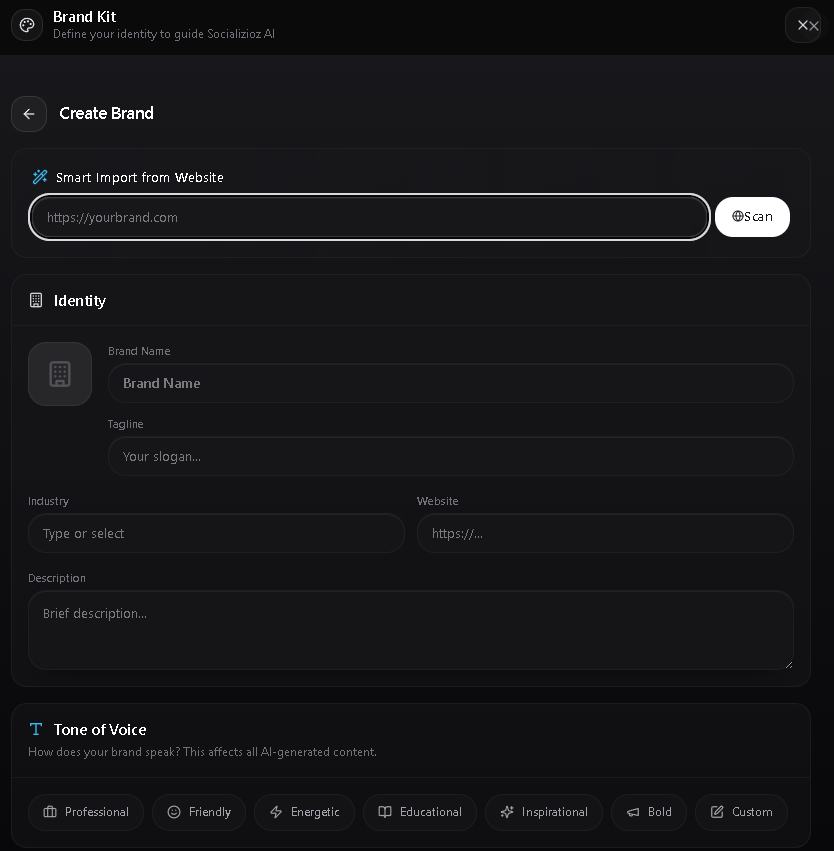
Start with smart import (recommended)

Enter your website URL and click Scan. The system analyzes your site and auto-fills your brand name, tagline, description, industry, colors, logo, tone, and target audience. You can edit any auto-filled field afterward.
3

Complete identity fields

Fill in or adjust: logo, brand name, tagline, industry, website URL, and description.
4

Set your tone and audience

Choose a tone of voice and target audience from the presets, or type a custom value.
5

Configure AI personality

Adjust the humor, empathy, and professionalism sliders. Set emoji usage and response length preferences.
6

Link social accounts

Select which connected accounts belong to this brand. This determines which profile the AI uses when publishing to each account.
7

Save

Click Save to create the profile. It takes effect on new AI conversations immediately.

Smart import from website

Smart import analyzes your website and pre-fills your profile automatically. Enter your website URL and click Scan to detect:
  • Brand name and tagline
  • Description
  • Industry category
  • Brand colors (used by AI for visual content)
  • Logo
  • Tone of voice
  • Target audience
Brand colors detected by smart import are stored in your profile and used by the AI for visual content generation. They cannot be viewed or edited manually in the form at this time.
Smart import works best on pages with clear branding — your homepage or about page. If the scan misses something, you can fill it in manually.

Profile sections

Identity

FieldDescription
LogoYour brand logo, shown on the profile card
Brand nameThe display name for this brand
TaglineA short brand tagline or slogan
IndustrySelect from 20 presets or enter a custom industry (see list below)
WebsiteYour brand’s website URL
DescriptionA brief description of your brand or business
The 20 predefined industries are: Technology, Fashion, Food & Beverage, Health & Wellness, Real Estate, Education, Finance, Travel, Entertainment, Automotive, Beauty, Sports, Marketing, E-commerce, Non-profit, Consulting, Art & Design, Gaming, Media, and Legal.
The industry field supports type-ahead filtering. Start typing and matching industries appear in a dropdown. You can also enter a completely custom industry if none of the presets fit.

Tone of voice

Choose how your brand communicates. Select one preset or type a custom tone description:
PresetBest for
ProfessionalCorporate brands, B2B, financial services
FriendlyCommunity brands, lifestyle, consumer products
EnergeticFitness, events, youth-focused brands
EducationalEdTech, courses, how-to content
InspirationalNon-profits, coaching, personal development
BoldStartups, disruptors, fashion

Target audience

Define who your content speaks to. Select a preset or describe a custom audience:
  • Professionals
  • Students
  • Parents
  • Investors
  • Businesses
  • General Public

Brand goal

A free-text field describing what you want to achieve — for example, “Increase brand awareness among young professionals” or “Drive product signups through educational content.”

Connected accounts

Select which social accounts belong to this brand. When you publish or generate content for a linked account, the AI automatically uses this brand profile.
If you manage multiple brands in one workspace, link each social account to the correct profile so the AI never mixes up brand voices.

AI personality

Fine-tune how the AI communicates for this brand:
SettingOptionsWhat it controls
HumorSlider 0–100%How playful or serious the generated text is
EmpathySlider 0–100%How warm and understanding the tone feels
ProfessionalismSlider 0–100%How formal or casual the language is
Emoji usageNone, Minimal, Moderate, HeavyHow often emojis appear in generated content
Response lengthConcise, Balanced, DetailedHow long AI-generated captions and replies tend to be

How sliders affect output

The three personality sliders work together to shape the AI’s writing style:
  • Humor at 0% produces strictly factual, informational text. At 100%, the AI uses wordplay, lighthearted phrasing, and playful language where appropriate.
  • Empathy at 0% keeps the tone neutral and transactional. At 100%, the AI writes with warmth, acknowledges the reader’s feelings, and uses inclusive language.
  • Professionalism at 0% allows casual, conversational language including contractions and informal phrasing. At 100%, the AI uses formal vocabulary, complete sentences, and avoids slang.
When sliders interact, the AI balances them. For example, high humor with high professionalism produces witty but polished copy rather than informal jokes. Low empathy with high professionalism produces direct, business-like communication.

Choosing emoji and length settings

  • Emoji usage controls whether generated captions and replies include emojis. Set it to None for corporate or legal content, Minimal for occasional accent emojis, Moderate for social-friendly posts, or Heavy for highly visual platforms like Instagram.
  • Response length sets the default verbosity. Concise produces short punchy captions (ideal for X and TikTok). Balanced works for most platforms. Detailed generates longer captions with context (useful for LinkedIn and Facebook).

Brand guidelines

Add specific rules for the AI to follow — for example:
  • “Never use slang”
  • “Always include a call to action”
  • “Avoid mentioning competitors by name”
  • “Use metric units, not imperial”
Click AI Suggest to have the AI generate guidelines based on your brand details. You can edit the suggestions before saving.

Managing multiple profiles

Brand profiles appear as cards in a grid on the workspace settings page. Each card shows:
  • Brand logo (or a placeholder icon)
  • Brand name and tagline
  • Industry and tone badges
  • A count of linked social accounts (for example, “3 accounts”)
From the card grid you can:
  • Click Add to create a new brand profile
  • Click Edit on any card to modify it
  • Click Delete on a card to remove it (a confirmation prompt appears before deletion)

How the AI selects a profile

When you publish or generate content, the AI matches the brand profile to the connected social account you are targeting. If an account is linked to a brand profile, that profile is used automatically. If no profile is linked, the AI uses generic defaults.
After updating your brand profile, start a new AI conversation to ensure the assistant picks up the latest settings. Existing conversations may use cached context.

Common workflows

Setting up profiles for an agency

If you manage multiple clients, create a separate brand profile for each client within your workspace. Link each client’s social accounts to their respective profile. This way, content generated for Client A uses Client A’s voice, and Client B’s posts sound like Client B. For complete isolation between clients (separate billing, team members, and analytics), use separate workspaces instead.

Refreshing a brand profile after a rebrand

1

Run smart import again

If your website has been updated with new branding, open the brand profile, enter your URL, and click Scan to pull in the latest brand elements.
2

Review and adjust

Check that auto-detected fields match your new brand identity. Update tone, audience, and guidelines as needed.
3

Update brand guidelines

Add any new rules that reflect the rebrand — for example, updated terminology or messaging pillars.
4

Start fresh conversations

New AI conversations will use the updated profile. Existing conversations may still reference the old profile.

Using AI Suggest for brand guidelines

If you are not sure what guidelines to add, fill in your identity, tone, and audience fields first, then click AI Suggest in the guidelines section. The AI generates rules tailored to your brand profile. Review and edit the suggestions, then save.

Troubleshooting

ProblemResolution
Smart import did not detect my brandMake sure the URL points to a public page with visible branding (logo, company name, meta tags). Try your homepage or about page.
AI content does not match my brand voiceCheck that the social account you are publishing to is linked to the correct brand profile. Open the profile and verify the tone, audience, and guidelines match your expectations.
Brand profile changes not reflected in AI contentStart a new AI conversation after updating your profile. Existing conversations may use cached context.
Not sure which profile the AI is usingThe AI matches the profile to the connected social account being used. Check the Connected accounts section of each profile to see which accounts are linked.
Cannot edit a brand profileOnly Owner and Admin roles can edit brand profiles. Check your role in the Members section of workspace settings.
Deleted a profile by accidentBrand profile deletion is permanent. You will need to create a new profile. Use smart import to speed up the process.
  • AI chat assistant — the AI uses your brand profile to generate on-brand content
  • Post composer — AI writing tools in the composer reference your active brand profile
  • AI content generation — brand context shapes generated captions and images
  • Workspace settings — manage brand profiles from the workspace tab
  • Comments — AI reply assist uses your brand voice for comment responses
Last modified on May 16, 2026