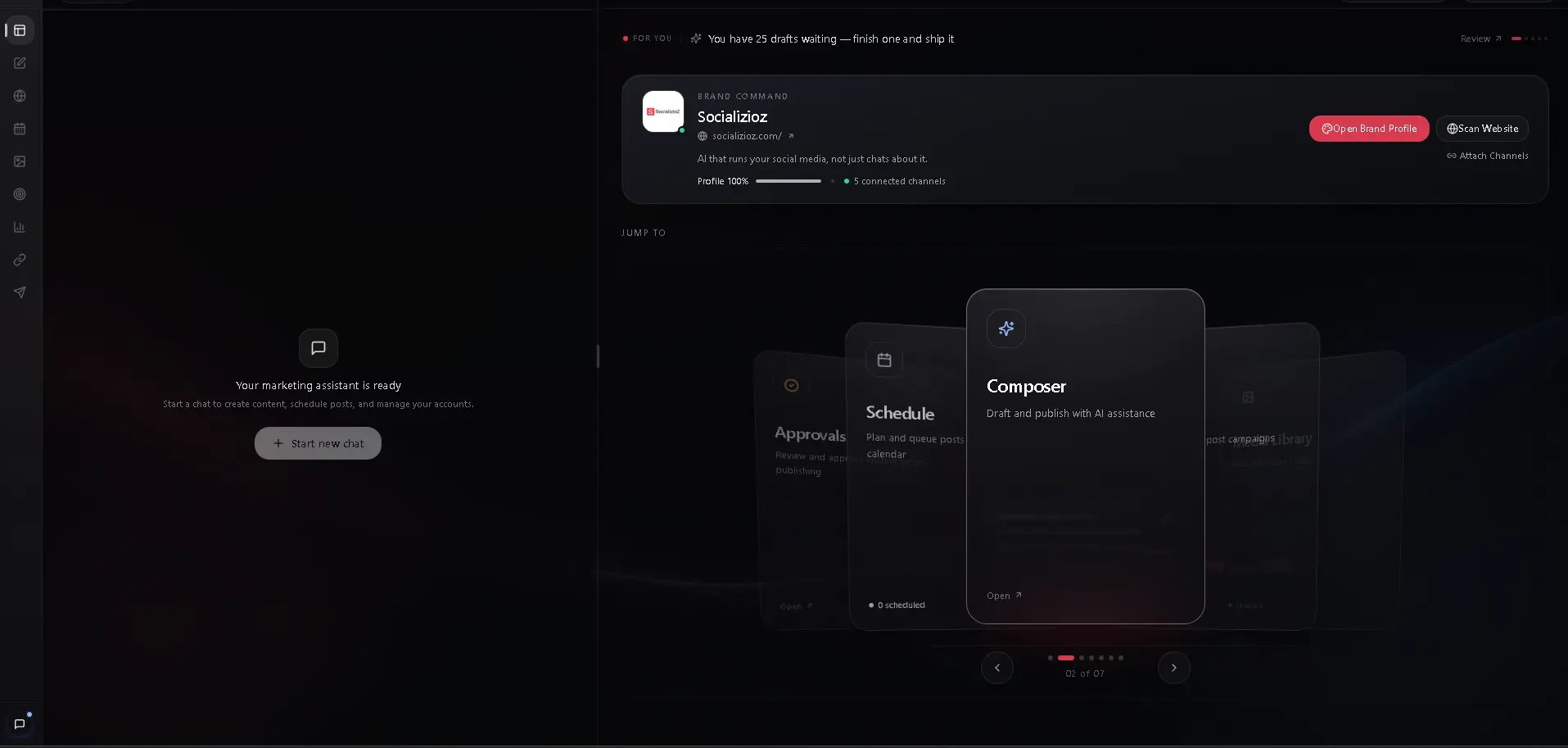
The workspace overview is the first screen you see after opening your workspace. It provides a snapshot of your content activity, shortcuts to key tools, and the health status of your connected accounts.

Desktop layout

On desktop, the workspace uses a three-panel layout:
  1. Navigation rail — a collapsible sidebar on the left with icons for each section. It expands on hover to show labels and collapses back to icons when your mouse leaves. The rail includes: Workspace, Create, Schedule, Media Library, Campaigns, Analytics, Connections, and Inbox.
  2. AI chat panel — the left resizable panel (defaults to 30% width) contains the AI chat assistant. You can chat with the assistant while viewing any workspace section.
  3. Canvas panel — the right resizable panel (defaults to 70% width) shows the active view. A draggable handle between the two panels lets you resize them to your preference. Your layout is saved automatically and restored on your next visit.

Canvas views

The canvas panel displays one view at a time. Switch views using the navigation rail or direct links. Each view loads inside the canvas without a full page navigation:
ViewRail labelWhat it shows
OverviewWorkspaceDashboard with metrics, command center, and account health
CreateCreateThe guided content builder for composing posts
ScheduleScheduleThe calendar with all scheduled, published, and draft posts
Media LibraryMedia LibraryYour media assets with upload and AI generation
CampaignsCampaignsCampaign management with content plans and analytics
AnalyticsAnalyticsPerformance metrics across all connected accounts
ConnectionsConnectionsConnected social accounts and their health status
The Inbox link in the rail opens the inbox as a standalone page instead of a canvas view.
Resize the AI chat panel wider when you want more conversation context, or narrower to give the canvas view more space. Your layout preference is saved automatically.

Mobile layout

On mobile, the workspace displays a single-column layout with a back button header. Canvas views fill the full screen. The AI chat is accessible from the bottom tab bar rather than a side panel. See mobile experience for details on mobile navigation.

Post metrics

Three cards at the top show your current content counts:
CardWhat it shows
PublishedTotal posts successfully published across all platforms
ScheduledPosts queued for automatic publishing
DraftsPosts saved but not yet scheduled or published
Click any card to jump to the schedule filtered by that status. When new activity happens (for example, a scheduled post publishes), the relevant card briefly shows a notification glow so you notice the change.

Command center

Below the metrics, the command center gives you one-click access to the tools you use most:
  • Create post — opens the composer. An “AI” badge indicates that AI writing tools are available inside.
  • Media library — shows a preview grid of your most recent assets and a total count. Click to open the media library.
  • Analytics — displays a sparkline chart of recent engagement trends. Click to open the analytics dashboard.
  • Campaigns — shows a breakdown of active, draft, and completed campaigns. Click to open the campaigns page.
Each command center card includes a primary action and a secondary action. For example, the media library card lets you jump straight to uploading a new file without opening the library first.

Connected accounts

The accounts section at the bottom summarizes the health of your connected social accounts at a glance:
  • Total connected — how many accounts are linked to this workspace
  • Healthy — accounts with valid tokens, ready to publish
  • Needs attention — accounts with expired tokens that require reconnection
Platform chips for Facebook, Instagram, TikTok, X, LinkedIn, and Telegram each display the number of connected accounts for that platform. Click a chip to expand and see individual accounts, including their display name, handle, and status:
  • Green dot — the account is healthy and ready to publish
  • Amber warning — the token has expired and the account needs to be reconnected
Click Manage connections to go to the connections page where you can reconnect expired accounts or add new ones.
Check the accounts section regularly to catch expired tokens before a scheduled post fails to publish.

Automatic token refresh

Socializioz monitors your Meta (Facebook and Instagram) account tokens in the background. When a token is close to expiring, the app attempts to refresh it automatically. You may see brief toast notifications:
ToastMeaning
”Access token refreshed for [account]“The token was refreshed automatically. No action needed.
”Please reconnect [account]“Automatic refresh failed. Go to connections and reconnect the account.
”[Account] expired. Please reconnect.”The token has already expired. Reconnect as soon as possible to avoid failed posts.
Token checks run hourly while the app is open. Other platforms (TikTok, X, LinkedIn) use long-lived tokens that do not require automatic refresh.

Empty states

If you are new to Socializioz or have just created a workspace, the overview adapts to guide you:
  • No posts yet — metric cards show dashes instead of numbers while data loads. Once you publish, schedule, or save a draft, counts appear automatically.
  • No connected accounts — the accounts section prompts you to connect your first social account. Click Manage connections to get started.
  • No media — the media library card in the command center is empty until you upload your first asset.
  • No campaigns — the campaigns card shows zero counts until you create a campaign.
If data fails to load, the overview retries once automatically. Refresh the page manually if counts still show dashes after a few seconds.

Offline mode

If your internet connection drops, a full-screen overlay appears letting you know you are offline. Your data is safe and will sync when connectivity is restored. The overlay includes a Try again button to reload the page, and it dismisses automatically when the connection comes back.

Workspace switching

If you manage multiple workspaces, use the workspace selector in the sidebar to switch between them. All data on the overview — metrics, command center previews, and account health — updates immediately to reflect the selected workspace.

Workspace layout

On desktop, the workspace uses a two-panel layout so you can work with the AI chat and another view at the same time.

Split-panel view

The screen is divided into two resizable panels:
PanelDefault widthWhat it shows
Chat panel (left)30%The AI chat assistant — always visible alongside your active view
Canvas panel (right)70%The active view — overview, schedule, media library, composer, analytics, campaigns, or connections
Drag the divider between the panels to resize them. The chat panel can shrink to 20% or expand to 50% of the screen. Your preferred panel sizes are saved automatically and persist across sessions.

Canvas views

The canvas panel displays one view at a time. Switch between views using the navigation rail on the left edge of the screen:
ViewWhat it shows
OverviewPost metrics, command center, and account health (this page)
ScheduleThe content calendar
MediaThe media library
ComposerThe post composer
AnalyticsThe analytics dashboard
CampaignsCampaign management
ConnectionsConnected accounts
Each canvas view shows a header with the view title and subtitle. The active view is highlighted in the navigation rail. A narrow icon rail sits along the left edge of the screen. Hover over it to expand and see labels for each view. The rail also includes:
  • Workspace selector — switch between workspaces from a dropdown at the top of the rail
  • View icons — click any icon to switch the canvas to that view

Mobile layout

On mobile, the split-panel layout is replaced by a single-column view. There is no persistent chat panel — the AI chat is accessed from the bottom tab bar instead. See mobile experience for details. From the workspace overview, you can reach any part of Socializioz:
  • Desktop — use the navigation rail on the left edge. It expands on hover to show labels for each section: Overview, Schedule, Media, Composer, Analytics, Campaigns, and Connections.
  • Mobile — use the bottom tab bar for Chat, Create, Schedule, and Library. Tap the hamburger menu for additional pages like Campaigns, Connections, Analytics, and Settings.

Troubleshooting

ProblemResolution
Metric cards show dashes and never loadRefresh the page. If the issue persists, check your internet connection or visit the system status page.
Account shows amber warning but was recently connectedThe token may have expired or been revoked on the platform side. Go to connections and reconnect the account.
Command center cards show stale dataData refreshes when you open the overview. Pull to refresh on mobile or reload the page on desktop to get the latest counts.
Workspace selector is missingYou only see the workspace selector when your account has more than one workspace. Create a new workspace from workspace settings.