> ## Documentation Index
> Fetch the complete documentation index at: https://docs.socializioz.com/llms.txt
> Use this file to discover all available pages before exploring further.
# Download and install
> Install the Socializioz mobile app on Android or iOS, or open the web app in any modern browser — including PWA installation steps for desktop use.
 ## Android app
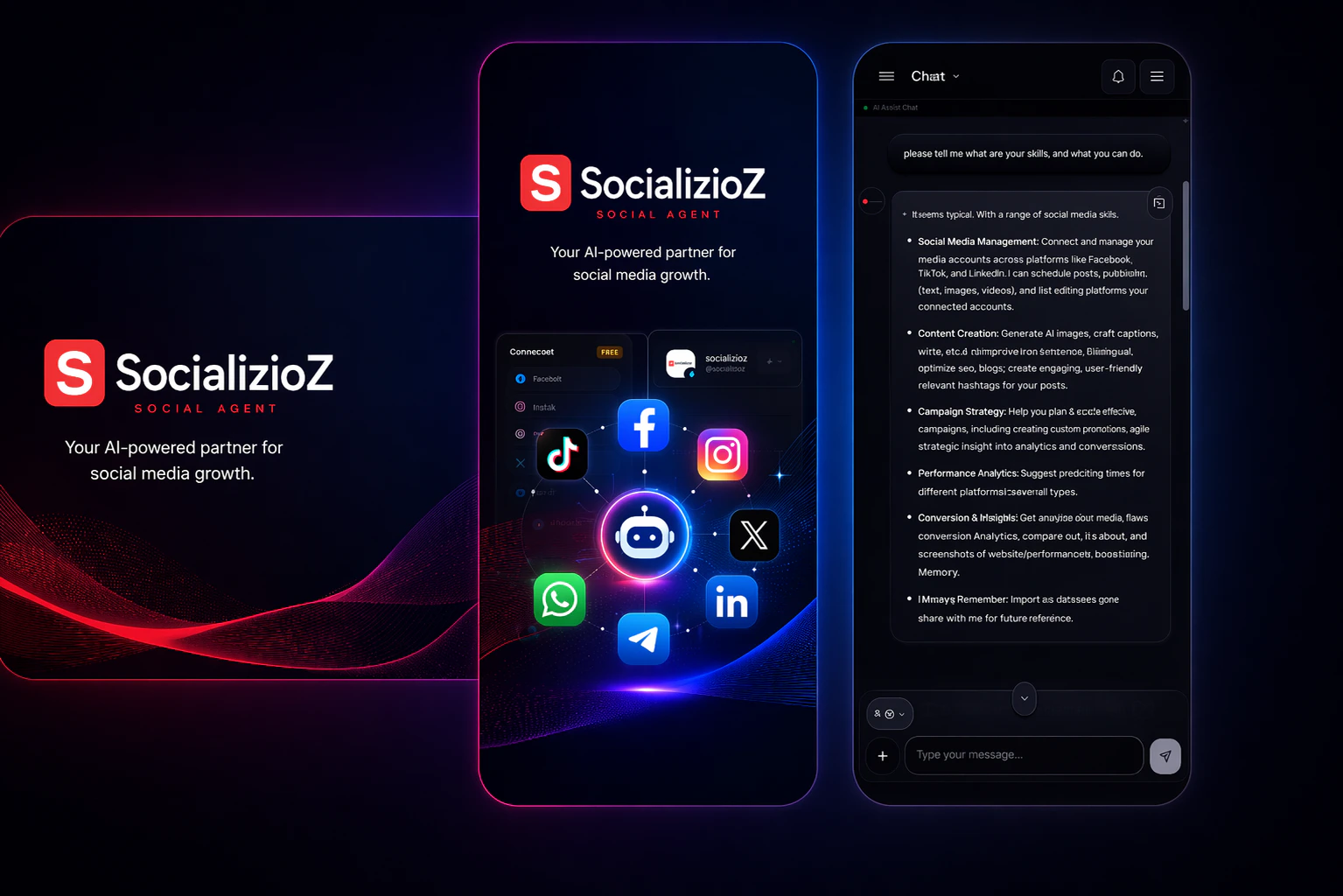
 The Android app provides the same features as the web version, including the [Socializioz Agent](/features/ai-chat) for chat-led social media management, plus post creation, scheduling, and analytics as supporting workflows.
### Installing on Android
Open the Google Play Store on your device and search for **Socializioz**, or tap the badge above to open the listing directly.
Tap **Install** and wait for the download to complete. The app requires approximately 25 MB of storage.
Open Socializioz and sign in with your existing credentials. If this is your first time, the [onboarding wizard](/getting-started/onboarding) guides you through workspace setup.
The Android app requires Android 8.0 or later. It uses the same account as the web app — sign in with your existing credentials.
### Updating the Android app
The Play Store handles updates automatically. To check for updates manually:
1. Open the Play Store and search for Socializioz.
2. If an update is available, tap **Update**.
3. Relaunch the app after the update completes.
Enable auto-updates in the Play Store to ensure you always have the latest version with bug fixes and new features.
## iOS app
The Android app provides the same features as the web version, including the [Socializioz Agent](/features/ai-chat) for chat-led social media management, plus post creation, scheduling, and analytics as supporting workflows.
### Installing on Android
Open the Google Play Store on your device and search for **Socializioz**, or tap the badge above to open the listing directly.
Tap **Install** and wait for the download to complete. The app requires approximately 25 MB of storage.
Open Socializioz and sign in with your existing credentials. If this is your first time, the [onboarding wizard](/getting-started/onboarding) guides you through workspace setup.
The Android app requires Android 8.0 or later. It uses the same account as the web app — sign in with your existing credentials.
### Updating the Android app
The Play Store handles updates automatically. To check for updates manually:
1. Open the Play Store and search for Socializioz.
2. If an update is available, tap **Update**.
3. Relaunch the app after the update completes.
Enable auto-updates in the Play Store to ensure you always have the latest version with bug fixes and new features.
## iOS app
 The iOS app is available on the Apple App Store and uses the same Socializioz account as web and Android.
### Installing on iOS
On your iPhone or iPad, open the App Store and search for **Socializioz**, or tap the link above.
Tap **Get** (or the cloud download icon if you installed it before), then complete Face ID/Touch ID/passcode confirmation if prompted.
Open Socializioz and sign in with your existing credentials.
### Add to home screen (PWA)
You can install Socializioz as a progressive web app (PWA) for a native-like experience without the browser toolbar. This works as a standalone option on Android Chrome or as a fallback on iOS when the App Store is unavailable.
#### iOS (Safari)
Navigate to [socializioz.com](https://socializioz.com) in **Safari**. This option is not available in Chrome or other iOS browsers.
Tap the share icon (square with an upward arrow) in the Safari toolbar at the bottom of the screen.
Scroll down in the share sheet and tap **Add to Home Screen**. You can rename the shortcut or keep the default name.
Tap **Add** in the top-right corner. The Socializioz icon appears on your home screen.
#### Android (Chrome)
Navigate to [socializioz.com](https://socializioz.com) in **Google Chrome**.
Tap the three-dot menu icon in the top-right corner of Chrome.
Select **Add to Home screen** (or **Install app** if Chrome detects the PWA manifest). Confirm the name and tap **Add**.
The Socializioz icon appears on your home screen. Tap it to launch the app in standalone mode without the browser address bar.
#### After installing the PWA
Once installed, the PWA opens in its own window with a dark-themed status bar and no browser toolbar. You use the same account as the web app — no need to sign in again or reconnect social accounts.
The PWA requires an internet connection. There is no offline mode or local data caching. If you experience stale content, force-close the app from your app switcher and reopen it. See [PWA troubleshooting](/features/troubleshooting#pwa-showing-stale-content-after-an-update) for more details.
## Web app
Launch Socializioz in your browser — no installation required.
The web app works on any device with a modern browser. No installation or download is needed — just sign in and start working.
## Supported browsers
For the best experience, use the latest version of:
* **Google Chrome** (recommended)
* **Safari** (macOS and iOS)
* **Microsoft Edge**
* **Firefox**
Older browsers or browsers with aggressive ad blockers may cause unexpected behavior. If you experience issues, try disabling extensions or switching to Chrome.
See [troubleshooting](/features/troubleshooting#supported-browsers) for browser compatibility details.
## Troubleshooting
| Problem | Resolution |
| ----------------------------------------------- | ------------------------------------------------------------------------------------------------------------------------------------------------------------------------------------------------------------- |
| Play Store says "not available in your country" | Socializioz may not be listed in all regions yet. Use the [web app](https://socializioz.com) instead — it works identically. |
| iOS App Store listing does not open | Open the link directly: [App Store listing](https://apps.apple.com/us/app/socializioz/id6761924194). If App Store access is restricted, use the web app or optional Safari Add to Home Screen fallback above. |
| "Add to Home Screen" option missing in Safari | Ensure you are using Safari, not Chrome or another iOS browser. The option appears in the share menu (square with upward arrow). |
| App is slow or unresponsive | Try a hard refresh (Ctrl+Shift+R on desktop, or close and reopen on mobile). Check [system status](https://socializioz.com/status) for outages. |
| Cannot sign in after installing | Verify your internet connection and try again. If the issue persists, clear your browser cache or app data and retry. See [troubleshooting](/features/troubleshooting) for more. |
## What to do after installing
1. [Create your workspace](/getting-started/onboarding) if this is your first time.
2. [Connect a social account](/getting-started/connecting-accounts) so the Agent can help plan, create, and schedule content within your plan and approval rules. You can also work directly from the [composer](/features/composer).
3. Open the [Socializioz Agent](/features/ai-chat) and ask it to plan, create, schedule, publish (with your approval), or analyze content — or explore the [workspace overview](/features/workspace-overview) to work hands-on.
On mobile, Socializioz uses a bottom tab bar for quick access to Chat, Create, Schedule, and Library. See [mobile experience](/features/mobile-experience) for a full guide to mobile navigation and features.
The iOS app is available on the Apple App Store and uses the same Socializioz account as web and Android.
### Installing on iOS
On your iPhone or iPad, open the App Store and search for **Socializioz**, or tap the link above.
Tap **Get** (or the cloud download icon if you installed it before), then complete Face ID/Touch ID/passcode confirmation if prompted.
Open Socializioz and sign in with your existing credentials.
### Add to home screen (PWA)
You can install Socializioz as a progressive web app (PWA) for a native-like experience without the browser toolbar. This works as a standalone option on Android Chrome or as a fallback on iOS when the App Store is unavailable.
#### iOS (Safari)
Navigate to [socializioz.com](https://socializioz.com) in **Safari**. This option is not available in Chrome or other iOS browsers.
Tap the share icon (square with an upward arrow) in the Safari toolbar at the bottom of the screen.
Scroll down in the share sheet and tap **Add to Home Screen**. You can rename the shortcut or keep the default name.
Tap **Add** in the top-right corner. The Socializioz icon appears on your home screen.
#### Android (Chrome)
Navigate to [socializioz.com](https://socializioz.com) in **Google Chrome**.
Tap the three-dot menu icon in the top-right corner of Chrome.
Select **Add to Home screen** (or **Install app** if Chrome detects the PWA manifest). Confirm the name and tap **Add**.
The Socializioz icon appears on your home screen. Tap it to launch the app in standalone mode without the browser address bar.
#### After installing the PWA
Once installed, the PWA opens in its own window with a dark-themed status bar and no browser toolbar. You use the same account as the web app — no need to sign in again or reconnect social accounts.
The PWA requires an internet connection. There is no offline mode or local data caching. If you experience stale content, force-close the app from your app switcher and reopen it. See [PWA troubleshooting](/features/troubleshooting#pwa-showing-stale-content-after-an-update) for more details.
## Web app
Launch Socializioz in your browser — no installation required.
The web app works on any device with a modern browser. No installation or download is needed — just sign in and start working.
## Supported browsers
For the best experience, use the latest version of:
* **Google Chrome** (recommended)
* **Safari** (macOS and iOS)
* **Microsoft Edge**
* **Firefox**
Older browsers or browsers with aggressive ad blockers may cause unexpected behavior. If you experience issues, try disabling extensions or switching to Chrome.
See [troubleshooting](/features/troubleshooting#supported-browsers) for browser compatibility details.
## Troubleshooting
| Problem | Resolution |
| ----------------------------------------------- | ------------------------------------------------------------------------------------------------------------------------------------------------------------------------------------------------------------- |
| Play Store says "not available in your country" | Socializioz may not be listed in all regions yet. Use the [web app](https://socializioz.com) instead — it works identically. |
| iOS App Store listing does not open | Open the link directly: [App Store listing](https://apps.apple.com/us/app/socializioz/id6761924194). If App Store access is restricted, use the web app or optional Safari Add to Home Screen fallback above. |
| "Add to Home Screen" option missing in Safari | Ensure you are using Safari, not Chrome or another iOS browser. The option appears in the share menu (square with upward arrow). |
| App is slow or unresponsive | Try a hard refresh (Ctrl+Shift+R on desktop, or close and reopen on mobile). Check [system status](https://socializioz.com/status) for outages. |
| Cannot sign in after installing | Verify your internet connection and try again. If the issue persists, clear your browser cache or app data and retry. See [troubleshooting](/features/troubleshooting) for more. |
## What to do after installing
1. [Create your workspace](/getting-started/onboarding) if this is your first time.
2. [Connect a social account](/getting-started/connecting-accounts) so the Agent can help plan, create, and schedule content within your plan and approval rules. You can also work directly from the [composer](/features/composer).
3. Open the [Socializioz Agent](/features/ai-chat) and ask it to plan, create, schedule, publish (with your approval), or analyze content — or explore the [workspace overview](/features/workspace-overview) to work hands-on.
On mobile, Socializioz uses a bottom tab bar for quick access to Chat, Create, Schedule, and Library. See [mobile experience](/features/mobile-experience) for a full guide to mobile navigation and features.