> ## Documentation Index
> Fetch the complete documentation index at: https://docs.socializioz.com/llms.txt
> Use this file to discover all available pages before exploring further.
# Workspace overview
> Tour the Socializioz workspace dashboard with post metrics, quick actions, connected account health summaries, and canvas-based navigation for daily work.
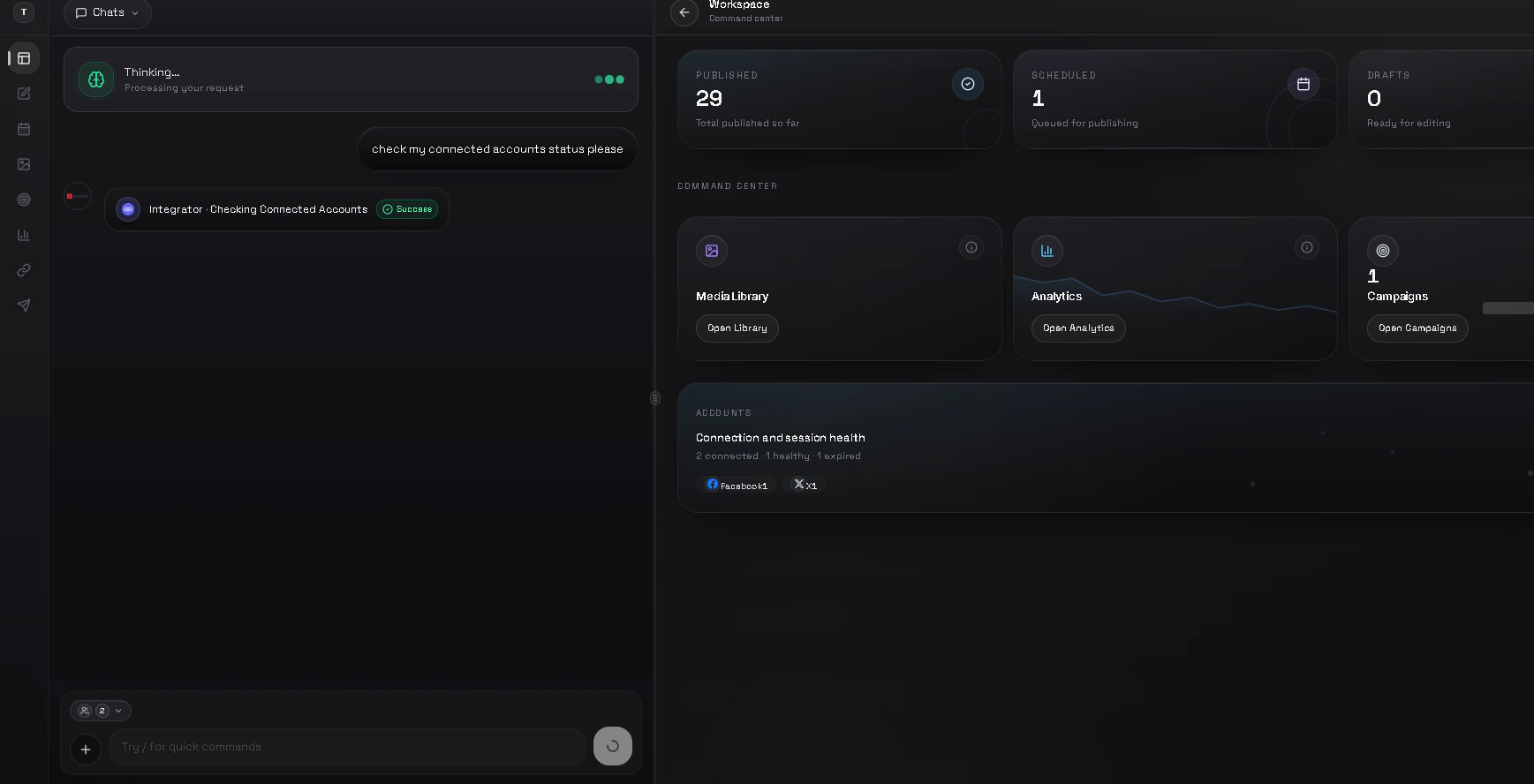 The workspace overview is the first screen you see after opening your workspace. It provides a snapshot of your content activity, shortcuts to key tools, and the health status of your connected accounts.
The first time you visit, an [interactive guided tour](/getting-started/onboarding#interactive-guided-tours) highlights key sections of the overview so you can get oriented quickly.
## Desktop layout
On desktop, the workspace uses a sidebar-based layout:
1. **Sidebar** -- a collapsible sidebar on the left with labeled links to every major section. Click the chevron at the bottom to collapse the sidebar to icon-only mode or expand it back to show labels. The sidebar includes: Workspace, Chat, Composer, Schedule, Media, Connections, Analytics, and Settings.
2. **Header bar** -- a sticky top bar with the [global search](/features/global-search) on the left and your notification bell and profile menu on the right.
3. **Content area** -- the main area to the right of the sidebar displays the active page.
### Sidebar sections
| Section | What it opens |
| ----------- | ----------------------------------------------------------------------------------- |
| Workspace | Dashboard with metrics, command center, and account health |
| Chat | The [AI chat assistant](/features/ai-chat) for generating ideas and managing posts |
| Composer | The [composer](/features/composer) for drafting and publishing posts |
| Schedule | The [calendar](/features/scheduling) with all scheduled, published, and draft posts |
| Media | Your [media assets](/features/media-library) with upload and AI generation |
| Connections | [Connected social accounts](/features/connections) and their health status |
| Analytics | [Performance metrics](/features/analytics) across all connected accounts |
| Settings | [Workspace settings](/features/workspace-settings), billing, and preferences |
The active page is highlighted in the sidebar so you always know where you are.
Collapse the sidebar for more screen space when working in the composer or reviewing analytics. Click the chevron at the bottom of the sidebar to toggle between collapsed and expanded modes.
## Mobile layout
On mobile, the sidebar is hidden and the workspace displays a single-column layout. Navigation is handled by the bottom tab bar instead. See [mobile experience](/features/mobile-experience) for details on mobile navigation.
## Post metrics
Three cards at the top show your current content counts:
| Card | What it shows |
| --------- | ------------------------------------------------------- |
| Published | Total posts successfully published across all platforms |
| Scheduled | Posts queued for automatic publishing |
| Drafts | Posts saved but not yet scheduled or published |
Click any card to jump to the [schedule](/features/scheduling) filtered by that status. When new activity happens (for example, a scheduled post publishes), the relevant card briefly shows a notification glow so you notice the change.
## Command center
Below the metrics, the command center gives you one-click access to the tools you use most. A prominent **Create Post** button with an AI badge sits at the top, opening the [composer](/features/composer) directly.
Three command center cards follow:
* **Media library** -- shows a thumbnail grid of your most recent assets and a total count. Click **Open Library** to browse the [media library](/features/media-library).
* **Analytics** -- displays a decorative sparkline chart as a visual preview. Click **Open Analytics** to view the [analytics dashboard](/features/analytics) for your actual metrics.
* **Campaigns** -- shows a proportional bar chart of your active, draft, and completed campaigns with a total count. Click **Open Campaigns** to manage [campaigns](/features/campaigns).
Each card includes a tooltip describing its purpose and a visual preview that updates with your workspace data.
## Upcoming posts
Below the command center, the **Upcoming Posts** section shows your next five scheduled posts sorted by publish time. Each entry displays:
* A media thumbnail (or a placeholder icon if the post has no media)
* The post title (or "New Post" if no title was set)
* The target platform icon
* A relative time label (for example, "in 2 hours") and the scheduled date
Click **View All** to open the [schedule calendar](/features/scheduling) and see your full publishing queue. When you have no scheduled posts, the section shows a prompt to create your first post.
## Recent failures
The **Failures** section highlights posts that failed to publish, sorted by most recent. Each entry shows:
* An alert icon with a red background
* The post title and target platform icon
* The error message from the publishing attempt (for example, "Publishing failed")
* The error code, if available, displayed as a badge
Click **Details** to open the [activity log](/features/activity-log) for a full timeline of failure events. When all posts are publishing successfully, the section displays an "All posts working perfectly!" confirmation with a green check icon.
Check the failures section regularly to catch and retry failed posts before engagement drops. Click a failure to investigate the error, then retry or reschedule from the [schedule calendar](/features/scheduling#handling-failed-posts).
## Connected accounts
The accounts section at the bottom summarizes the health of your connected social accounts at a glance:
* **Total connected** -- how many accounts are linked to this workspace
* **Healthy** -- accounts with valid tokens, ready to publish
* **Needs attention** -- accounts with expired tokens that require reconnection
Platform chips for Facebook, Instagram, TikTok, X, LinkedIn, and Telegram each display the number of connected accounts for that platform. Click a chip to expand and see individual accounts, including their display name, handle, and status:
* **Green dot** -- the account is healthy and ready to publish
* **Amber warning** -- the token has expired and the account needs to be reconnected
Click **Manage connections** to go to the [connections page](/features/connections) where you can reconnect expired accounts or add new ones.
Check the accounts section regularly to catch expired tokens before a scheduled post fails to publish.
## Automatic token refresh
Socializioz monitors your Meta (Facebook and Instagram) account tokens in the background. When a token is close to expiring, the app attempts to refresh it automatically. You may see brief toast notifications:
| Toast | Meaning |
| --------------------------------------- | ----------------------------------------------------------------------------------------------- |
| "Access token refreshed for \[account]" | The token was refreshed automatically. No action needed. |
| "Please reconnect \[account]" | Automatic refresh failed. Go to [connections](/features/connections) and reconnect the account. |
| "\[Account] expired. Please reconnect." | The token has already expired. Reconnect as soon as possible to avoid failed posts. |
Token checks run hourly while the app is open. Other platforms (TikTok, X, LinkedIn) use long-lived tokens that do not require automatic refresh.
## Empty states
If you are new to Socializioz or have just created a workspace, the overview adapts to guide you:
* **No posts yet** -- metric cards show dashes instead of numbers while data loads. Once you publish, schedule, or save a draft, counts appear automatically.
* **No connected accounts** -- the accounts section prompts you to connect your first social account. Click **Manage connections** to get started.
* **No media** -- the media library card in the command center is empty until you upload your first asset.
* **No campaigns** -- the campaigns card shows zero counts until you create a campaign.
* **No scheduled posts** -- the upcoming posts section prompts you to start by creating a new post.
* **No failures** -- the failures section shows an "All posts working perfectly!" message with a green check icon.
If data fails to load, the overview retries once automatically. Refresh the page manually if counts still show dashes after a few seconds.
## Offline mode
If your internet connection drops, a full-screen overlay appears letting you know you are offline. Your data is safe and will sync when connectivity is restored. The overlay includes a **Try again** button to reload the page, and it dismisses automatically when the connection comes back.
## Workspace switching
If you manage multiple workspaces, use the workspace selector in the sidebar to switch between them. All data on the overview -- metrics, command center previews, and account health -- updates immediately to reflect the selected workspace.
## Getting oriented: your first visit
If you just finished [onboarding](/getting-started/onboarding) and landed on the workspace overview for the first time, here is what to do next.
Scroll to the **Connected accounts** section at the bottom. Verify that your social accounts show a green dot (healthy). If any show an amber warning, click **Manage connections** to reconnect them before scheduling posts.
Click **Create Post** to open the [composer](/features/composer) and draft your first post. Or click **Open Library** to upload media assets you will use in your content.
Click **Chat** in the sidebar to open the [AI chat assistant](/features/ai-chat). Try asking it to write a caption, suggest hashtags, or generate an image. The assistant can also schedule and publish posts for you.
Click through each section in the sidebar — **Schedule**, **Media**, **Connections**, **Analytics** — to see what is available.
Go to [workspace settings](/features/workspace-settings#timezone) and confirm your timezone is correct. All scheduled post times use this timezone.
Keep an eye on the failures section in the overview. If a scheduled post fails, it shows up here with the error message so you can retry or fix it quickly.
## Troubleshooting
| Problem | Resolution |
| ------------------------------------------------------ | ------------------------------------------------------------------------------------------------------------------------------------------------------------------ |
| Metric cards show dashes and never load | Refresh the page. If the issue persists, check your internet connection or visit the [system status page](/features/system-status). |
| Account shows amber warning but was recently connected | The token may have expired or been revoked on the platform side. Go to [connections](/features/connections) and reconnect the account. |
| Command center cards show stale data | Data refreshes when you open the overview. Pull to refresh on mobile or reload the page on desktop to get the latest counts. |
| Workspace selector is missing | You only see the workspace selector when your account has more than one workspace. Create a new workspace from [workspace settings](/features/workspace-settings). |
The workspace overview is the first screen you see after opening your workspace. It provides a snapshot of your content activity, shortcuts to key tools, and the health status of your connected accounts.
The first time you visit, an [interactive guided tour](/getting-started/onboarding#interactive-guided-tours) highlights key sections of the overview so you can get oriented quickly.
## Desktop layout
On desktop, the workspace uses a sidebar-based layout:
1. **Sidebar** -- a collapsible sidebar on the left with labeled links to every major section. Click the chevron at the bottom to collapse the sidebar to icon-only mode or expand it back to show labels. The sidebar includes: Workspace, Chat, Composer, Schedule, Media, Connections, Analytics, and Settings.
2. **Header bar** -- a sticky top bar with the [global search](/features/global-search) on the left and your notification bell and profile menu on the right.
3. **Content area** -- the main area to the right of the sidebar displays the active page.
### Sidebar sections
| Section | What it opens |
| ----------- | ----------------------------------------------------------------------------------- |
| Workspace | Dashboard with metrics, command center, and account health |
| Chat | The [AI chat assistant](/features/ai-chat) for generating ideas and managing posts |
| Composer | The [composer](/features/composer) for drafting and publishing posts |
| Schedule | The [calendar](/features/scheduling) with all scheduled, published, and draft posts |
| Media | Your [media assets](/features/media-library) with upload and AI generation |
| Connections | [Connected social accounts](/features/connections) and their health status |
| Analytics | [Performance metrics](/features/analytics) across all connected accounts |
| Settings | [Workspace settings](/features/workspace-settings), billing, and preferences |
The active page is highlighted in the sidebar so you always know where you are.
Collapse the sidebar for more screen space when working in the composer or reviewing analytics. Click the chevron at the bottom of the sidebar to toggle between collapsed and expanded modes.
## Mobile layout
On mobile, the sidebar is hidden and the workspace displays a single-column layout. Navigation is handled by the bottom tab bar instead. See [mobile experience](/features/mobile-experience) for details on mobile navigation.
## Post metrics
Three cards at the top show your current content counts:
| Card | What it shows |
| --------- | ------------------------------------------------------- |
| Published | Total posts successfully published across all platforms |
| Scheduled | Posts queued for automatic publishing |
| Drafts | Posts saved but not yet scheduled or published |
Click any card to jump to the [schedule](/features/scheduling) filtered by that status. When new activity happens (for example, a scheduled post publishes), the relevant card briefly shows a notification glow so you notice the change.
## Command center
Below the metrics, the command center gives you one-click access to the tools you use most. A prominent **Create Post** button with an AI badge sits at the top, opening the [composer](/features/composer) directly.
Three command center cards follow:
* **Media library** -- shows a thumbnail grid of your most recent assets and a total count. Click **Open Library** to browse the [media library](/features/media-library).
* **Analytics** -- displays a decorative sparkline chart as a visual preview. Click **Open Analytics** to view the [analytics dashboard](/features/analytics) for your actual metrics.
* **Campaigns** -- shows a proportional bar chart of your active, draft, and completed campaigns with a total count. Click **Open Campaigns** to manage [campaigns](/features/campaigns).
Each card includes a tooltip describing its purpose and a visual preview that updates with your workspace data.
## Upcoming posts
Below the command center, the **Upcoming Posts** section shows your next five scheduled posts sorted by publish time. Each entry displays:
* A media thumbnail (or a placeholder icon if the post has no media)
* The post title (or "New Post" if no title was set)
* The target platform icon
* A relative time label (for example, "in 2 hours") and the scheduled date
Click **View All** to open the [schedule calendar](/features/scheduling) and see your full publishing queue. When you have no scheduled posts, the section shows a prompt to create your first post.
## Recent failures
The **Failures** section highlights posts that failed to publish, sorted by most recent. Each entry shows:
* An alert icon with a red background
* The post title and target platform icon
* The error message from the publishing attempt (for example, "Publishing failed")
* The error code, if available, displayed as a badge
Click **Details** to open the [activity log](/features/activity-log) for a full timeline of failure events. When all posts are publishing successfully, the section displays an "All posts working perfectly!" confirmation with a green check icon.
Check the failures section regularly to catch and retry failed posts before engagement drops. Click a failure to investigate the error, then retry or reschedule from the [schedule calendar](/features/scheduling#handling-failed-posts).
## Connected accounts
The accounts section at the bottom summarizes the health of your connected social accounts at a glance:
* **Total connected** -- how many accounts are linked to this workspace
* **Healthy** -- accounts with valid tokens, ready to publish
* **Needs attention** -- accounts with expired tokens that require reconnection
Platform chips for Facebook, Instagram, TikTok, X, LinkedIn, and Telegram each display the number of connected accounts for that platform. Click a chip to expand and see individual accounts, including their display name, handle, and status:
* **Green dot** -- the account is healthy and ready to publish
* **Amber warning** -- the token has expired and the account needs to be reconnected
Click **Manage connections** to go to the [connections page](/features/connections) where you can reconnect expired accounts or add new ones.
Check the accounts section regularly to catch expired tokens before a scheduled post fails to publish.
## Automatic token refresh
Socializioz monitors your Meta (Facebook and Instagram) account tokens in the background. When a token is close to expiring, the app attempts to refresh it automatically. You may see brief toast notifications:
| Toast | Meaning |
| --------------------------------------- | ----------------------------------------------------------------------------------------------- |
| "Access token refreshed for \[account]" | The token was refreshed automatically. No action needed. |
| "Please reconnect \[account]" | Automatic refresh failed. Go to [connections](/features/connections) and reconnect the account. |
| "\[Account] expired. Please reconnect." | The token has already expired. Reconnect as soon as possible to avoid failed posts. |
Token checks run hourly while the app is open. Other platforms (TikTok, X, LinkedIn) use long-lived tokens that do not require automatic refresh.
## Empty states
If you are new to Socializioz or have just created a workspace, the overview adapts to guide you:
* **No posts yet** -- metric cards show dashes instead of numbers while data loads. Once you publish, schedule, or save a draft, counts appear automatically.
* **No connected accounts** -- the accounts section prompts you to connect your first social account. Click **Manage connections** to get started.
* **No media** -- the media library card in the command center is empty until you upload your first asset.
* **No campaigns** -- the campaigns card shows zero counts until you create a campaign.
* **No scheduled posts** -- the upcoming posts section prompts you to start by creating a new post.
* **No failures** -- the failures section shows an "All posts working perfectly!" message with a green check icon.
If data fails to load, the overview retries once automatically. Refresh the page manually if counts still show dashes after a few seconds.
## Offline mode
If your internet connection drops, a full-screen overlay appears letting you know you are offline. Your data is safe and will sync when connectivity is restored. The overlay includes a **Try again** button to reload the page, and it dismisses automatically when the connection comes back.
## Workspace switching
If you manage multiple workspaces, use the workspace selector in the sidebar to switch between them. All data on the overview -- metrics, command center previews, and account health -- updates immediately to reflect the selected workspace.
## Getting oriented: your first visit
If you just finished [onboarding](/getting-started/onboarding) and landed on the workspace overview for the first time, here is what to do next.
Scroll to the **Connected accounts** section at the bottom. Verify that your social accounts show a green dot (healthy). If any show an amber warning, click **Manage connections** to reconnect them before scheduling posts.
Click **Create Post** to open the [composer](/features/composer) and draft your first post. Or click **Open Library** to upload media assets you will use in your content.
Click **Chat** in the sidebar to open the [AI chat assistant](/features/ai-chat). Try asking it to write a caption, suggest hashtags, or generate an image. The assistant can also schedule and publish posts for you.
Click through each section in the sidebar — **Schedule**, **Media**, **Connections**, **Analytics** — to see what is available.
Go to [workspace settings](/features/workspace-settings#timezone) and confirm your timezone is correct. All scheduled post times use this timezone.
Keep an eye on the failures section in the overview. If a scheduled post fails, it shows up here with the error message so you can retry or fix it quickly.
## Troubleshooting
| Problem | Resolution |
| ------------------------------------------------------ | ------------------------------------------------------------------------------------------------------------------------------------------------------------------ |
| Metric cards show dashes and never load | Refresh the page. If the issue persists, check your internet connection or visit the [system status page](/features/system-status). |
| Account shows amber warning but was recently connected | The token may have expired or been revoked on the platform side. Go to [connections](/features/connections) and reconnect the account. |
| Command center cards show stale data | Data refreshes when you open the overview. Pull to refresh on mobile or reload the page on desktop to get the latest counts. |
| Workspace selector is missing | You only see the workspace selector when your account has more than one workspace. Create a new workspace from [workspace settings](/features/workspace-settings). |