> ## Documentation Index
> Fetch the complete documentation index at: https://docs.socializioz.com/llms.txt
> Use this file to discover all available pages before exploring further.
# Campaigns
> Plan, organize, and track social media marketing campaigns with content calendars, AI-generated mind maps, goals, and performance metrics in Socializioz.
Campaigns let you group related posts and content around a specific marketing initiative, product launch, or theme. You can track progress, view analytics, and manage all campaign content from one place.
The first time you visit, an [interactive guided tour](/getting-started/onboarding#interactive-guided-tours) highlights the key areas of the campaigns page.
## Creating a campaign
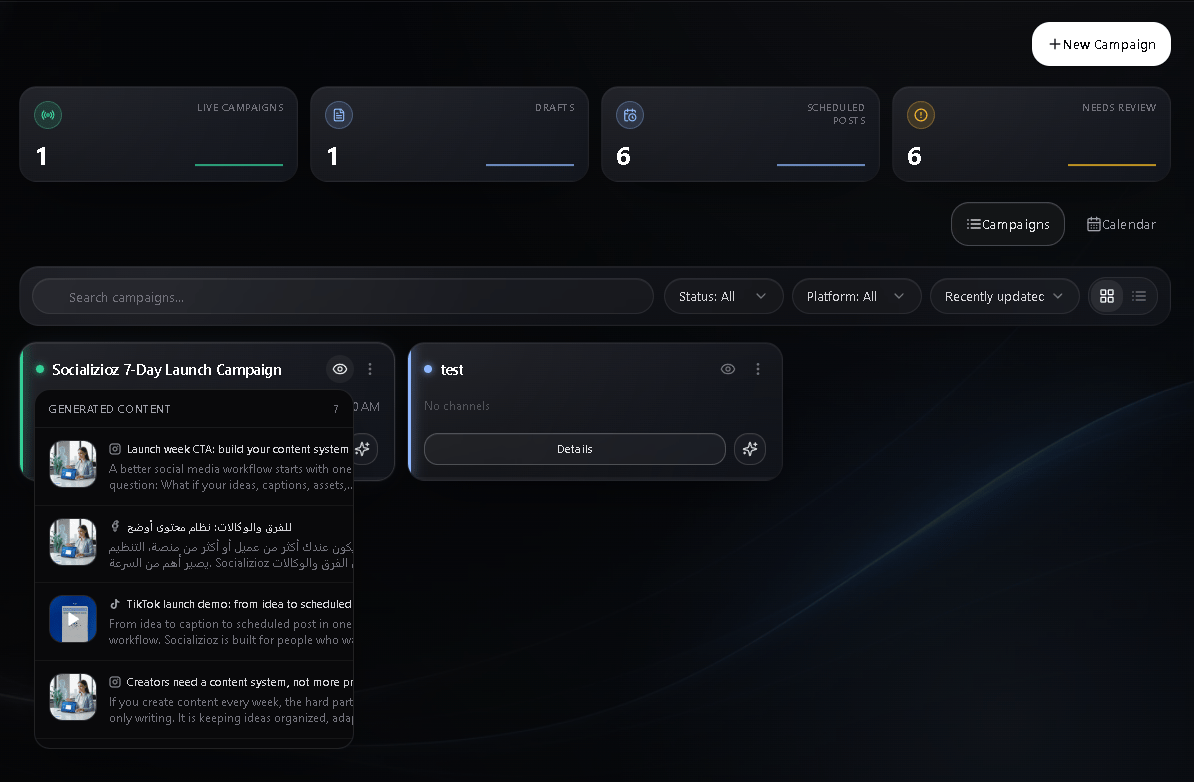 Navigate to **Campaigns** from the workspace sidebar or the More menu on mobile.
Click the **New Campaign** button to open the creation dialog.
Enter the following fields:
| Field | Required | Description |
| ----------- | -------- | ---------------------------------------------------------------------- |
| Name | Yes | A short name to identify the campaign |
| Objective | No | What you want to achieve (e.g., increase brand awareness, drive sales) |
| Description | No | A longer description of the campaign scope |
| Start date | No | When the campaign begins (defaults to today) |
| End date | No | When the campaign ends |
The campaign status defaults to **Draft** and displays as a read-only indicator at the bottom of the dialog.
Additional fields become available when you edit the campaign after creation (see [editing campaigns](#editing-and-deleting-campaigns)).
Click **Create** to save the campaign. It appears in your campaign list immediately.
You can also create campaigns through the [AI chat assistant](/features/ai-chat) by asking it to plan a campaign for you.
### AI-powered campaign wizard
Some entry points open a guided wizard that helps you build a campaign with AI suggestions:
Choose your industry from the dropdown (e.g., E-commerce, Restaurant, Health & Wellness, Beauty & Fashion, Technology, Education, Real Estate, and more). Click **Get AI Suggestions** to continue, or **Skip** to go straight to the details form.
The assistant generates three categories of suggestions based on your industry:
* **Suggested Objectives** -- goals tailored to your industry
* **Target Audiences** -- audience segments to consider
* **Content Strategies** -- approaches for your campaign content
Click any suggestion to apply it. A summary of your selections appears at the top.
Enter the campaign name, objective, and description. Any applied AI suggestions appear in a panel so you can reference them while filling in the form. Click **Create** to save.
## Campaign statuses
| Status | Meaning |
| --------- | -------------------------------- |
| Draft | Campaign is being planned |
| Active | Campaign is running |
| Paused | Campaign is temporarily stopped |
| Completed | Campaign has finished |
| Archived | Campaign is stored for reference |
You can change a campaign's status at any time by editing the campaign.
### Effect of status changes on scheduled posts
Changing a campaign's status does **not** pause, cancel, or modify its scheduled posts. Posts assigned to a campaign follow their own schedule independently.
| Campaign status | What happens to posts |
| --------------- | ------------------------------------------------------------------------------------------------------------------ |
| Paused | Scheduled posts continue to publish at their scheduled times. Pausing a campaign is an organizational signal only. |
| Archived | Scheduled posts continue to publish. The campaign becomes read-only but its posts are unaffected. |
| Completed | Scheduled posts continue to publish. Mark a campaign as completed after all posts have gone live. |
To stop posts from publishing, cancel or delete them individually from the [schedule calendar](/features/scheduling). There is no bulk-pause for all posts in a campaign.
## Campaign overview
The campaigns page shows a stats bar at the top with four tiles:
* **Total** -- total number of campaigns in your workspace
* **Active** -- campaigns currently running
* **Posts** -- total posts linked across all campaigns
* **Planned** -- content plans created for campaigns
Each campaign card displays the name, status, objective, date range, post counts, and connected social accounts. Pull down on mobile to refresh the list.
## Campaign detail view
Click any campaign to open its detail view. There are two ways to access campaign details:
### Quick view (modal)
Clicking **Details** on a campaign card opens a modal with three tabs:
* **All** -- a list of every post in the campaign showing caption, channel, and date
* **Planned** -- content plan items with titles, briefs, status, content type, planned date, and week number
* **Published** -- published posts with caption, channel, and published date
### Full detail page
Opening the campaign from the sidebar or navigating directly to the campaign page shows the full detail view with five tabs:
* **All** -- a grid of every post in the campaign with media previews
* **Planned** -- content plan items with details
* **Scheduled** -- posts that are scheduled but not yet published, with their scheduled date and time
* **Published** -- published posts with per-post metrics (impressions, likes, comments)
* **Analytics** -- summary cards showing total impressions, likes, and comments across all campaign posts. For a full cross-platform breakdown, visit the [analytics dashboard](/features/analytics).
The detail page header shows five KPI tiles: total posts, published, scheduled, impressions, and engagement (likes + comments + shares).
### Campaign detail panel
Clicking a campaign in certain views opens a slide-out panel that shows additional campaign properties:
* **Language** -- the campaign's target language (English, Arabic, or both)
* **Target location** -- the target country and city for the campaign
* **Content plan** -- all plan items grouped by week number, each showing the content type, plan status, planned date, idea title, and brief
### Content plan items
Each content plan item includes the following fields:
| Field | Description |
| ------------ | ---------------------------------------------- |
| Idea title | A short name for the planned post |
| Brief | A description of the content to create |
| Content type | Image, Reel, Story, or Carousel |
| Planned date | When the content should be published |
| Week number | The week within the campaign timeline |
| Status | The current state of the plan item (see below) |
### Content plan statuses
| Status | Meaning |
| -------- | ----------------------------------------------------- |
| Planned | The item has been created as part of the content plan |
| Approved | The item has been reviewed and approved for creation |
| Created | The item has been converted into an actual post |
| Rejected | The item was reviewed and not approved |
Content plan statuses are managed by the AI assistant -- there are no manual approve or reject buttons in the campaign views.
### Converting a plan item to a post
When the AI assistant converts a planned item into a real post, the following happens:
1. A new post is created using the plan item's caption, media assets, and target account.
2. If the campaign requires approval, the post enters the [approval workflow](/features/approvals) with a **pending** status.
3. The plan item's status changes to **Created** and a link to the resulting post is stored.
4. An activity log entry records the conversion.
You can trigger this conversion by asking the AI assistant to create a post from a specific plan item. The **Approved** and **Rejected** statuses reflect the AI's assessment during campaign planning.
Content plan items are read-only in the campaign detail views. To act on a planned item -- such as creating a post from it -- use the AI chat assistant with the campaign selected.
## Editing and deleting campaigns
To edit a campaign, click the edit button on any campaign card. The edit dialog opens with your existing values pre-filled.
### Campaign fields
When editing, you have access to the full set of campaign fields:
| Field | Description |
| ----------------------- | ------------------------------------------------------------------------------------------------------------------------------------------------------------------------------------------------------------------ |
| Name | The campaign display name |
| Objective | Your campaign goal |
| Description | A longer description of scope and approach |
| Status | Current status (Draft, Active, Paused, Completed, Archived) |
| Start date / End date | The campaign timeframe |
| Language | Target language for content: English, Arabic, or both |
| Target country | The geographic market you are targeting |
| Target city | A specific city within the target country |
| Primary social accounts | Which connected accounts are associated with this campaign |
| Brand voice | Tone guidance for AI-generated campaign content |
| Default hashtags | Hashtags to include by default on campaign posts |
| Blocked terms | Words or phrases the AI should avoid when generating content for this campaign. The [composer](/features/composer#blocked-terms) also checks captions against this list and blocks publishing if a match is found. |
Fill in the language, target location, and brand voice fields to give the AI assistant better context when generating content plans and captions for this campaign.
Click **Save Changes** when you are done.
To delete a campaign, click the delete button and confirm the action in the dialog.
Deleting a campaign cannot be undone. However, it does not delete the posts assigned to it — posts remain in your schedule and published history.
## Assigning posts to campaigns
To assign a post to a campaign, select the campaign when creating or editing a post in the [composer](/features/composer). Posts can be assigned during creation or added later by editing the post.
## AI campaign planning
You can use the AI chat assistant to generate campaign content plans. On any campaign card, click the sparkles icon to open the AI chat with that campaign pre-selected. The assistant can suggest post ideas, plan content calendars, and draft captions tailored to your campaign objective.
See [AI chat](/features/ai-chat) for more on what the assistant can do.
## Plan and execute a content week
This workflow walks you through using campaigns and the AI assistant together to plan, create, and publish a full week of content.
[Create a campaign](#creating-a-campaign) with a clear objective, start and end dates, and target audience. Fill in the language, target location, and brand voice fields so the AI has context for content generation.
Click the sparkles icon on the campaign card to open the [AI chat](/features/ai-chat) with your campaign pre-selected. Ask the assistant to plan a week of content — for example, "Plan 7 days of content for this campaign." The assistant generates a content plan with post ideas, content types, planned dates, and briefs grouped by day.
Open the campaign detail view and switch to the **Planned** tab to see all plan items. Each item shows the idea title, brief, content type, planned date, and week number. Review the suggestions and note any you want to adjust.
In the AI chat, ask the assistant to create posts from specific plan items — for example, "Create a post from the Monday idea." The assistant drafts a post with a caption, hashtags, and media prompt based on the plan item's brief. The plan item status changes to **Created**.
Use [AI image generation](/features/ai-content-generation#image-generation) or [AI video generation](/features/ai-content-generation#video-generation) to create visuals for each post. You can generate media directly from the [AI chat](/features/ai-chat), the [composer assist panel](/features/composer#assist-panel), or the [media library](/features/media-library#ai-image-and-video-generation).
Open each post in the [composer](/features/composer) and set the schedule date and time. Use the [best posting times](/features/analytics#audience-demographics) from your analytics to choose optimal time slots. If your workspace uses [approval workflows](/features/approvals), posts enter the pending queue for review.
Check the [schedule calendar](/features/scheduling) to see your week laid out. Drag posts to adjust timing if slots look unbalanced. After posts publish, track performance in the campaign's **Analytics** tab and the [analytics dashboard](/features/analytics).
For faster planning, ask the AI chat to generate both the content plan and the posts in one conversation. The assistant can create multiple posts in sequence and schedule them based on your preferred posting times.
## Deep-linking to campaigns
You can link directly to a specific campaign using the `?campaign=` URL parameter. This is used when navigating from other parts of the app — for example, clicking a campaign name in the schedule filter or the AI chat. On mobile, deep-linking opens the campaign detail view directly instead of the campaign list.
## Troubleshooting
You may have reached your plan's campaign limit. Check your current usage in **Settings > Billing > Usage**. Free plans allow 1 campaign and Starter plans allow 10. Upgrade your plan or archive existing campaigns to free up a slot.
Posts only appear under a campaign if they were explicitly assigned to it in the [composer](/features/composer). If you created a post without selecting a campaign, edit the post and assign it. Pull down on mobile to refresh the campaign detail view.
Campaign statuses are changed manually. Open the campaign, click the edit button, and update the status to **Active** or another appropriate value. Statuses do not change automatically based on dates.
AI-assisted campaign planning is available through supported Socializioz workflows. Availability can depend on the current plan and product version. Use the standard campaign creation flow or ask the [AI chat assistant](/features/ai-chat) to help plan the campaign.
Archived campaigns remain in your campaign list for reference. They count toward your plan's campaign limit. To remove them entirely, delete the campaign instead of archiving it.
## Campaign limits
| Plan | Campaigns |
| ------------ | --------- |
| Free | 1 |
| Starter | 10 |
| Professional | Unlimited |
| Enterprise | Unlimited |
## Related
* [Post composer](/features/composer) — assign posts to campaigns during creation
* [AI chat assistant](/features/ai-chat) — generate campaign content plans and convert plan items to posts
* [AI content generation](/features/ai-content-generation) — create images and videos for campaign posts
* [Analytics](/features/analytics) — track campaign performance and use the AI campaign planner
* [Scheduling and calendar](/features/scheduling) — manage campaign post schedules
* [Approvals](/features/approvals) — review campaign posts before they publish
Navigate to **Campaigns** from the workspace sidebar or the More menu on mobile.
Click the **New Campaign** button to open the creation dialog.
Enter the following fields:
| Field | Required | Description |
| ----------- | -------- | ---------------------------------------------------------------------- |
| Name | Yes | A short name to identify the campaign |
| Objective | No | What you want to achieve (e.g., increase brand awareness, drive sales) |
| Description | No | A longer description of the campaign scope |
| Start date | No | When the campaign begins (defaults to today) |
| End date | No | When the campaign ends |
The campaign status defaults to **Draft** and displays as a read-only indicator at the bottom of the dialog.
Additional fields become available when you edit the campaign after creation (see [editing campaigns](#editing-and-deleting-campaigns)).
Click **Create** to save the campaign. It appears in your campaign list immediately.
You can also create campaigns through the [AI chat assistant](/features/ai-chat) by asking it to plan a campaign for you.
### AI-powered campaign wizard
Some entry points open a guided wizard that helps you build a campaign with AI suggestions:
Choose your industry from the dropdown (e.g., E-commerce, Restaurant, Health & Wellness, Beauty & Fashion, Technology, Education, Real Estate, and more). Click **Get AI Suggestions** to continue, or **Skip** to go straight to the details form.
The assistant generates three categories of suggestions based on your industry:
* **Suggested Objectives** -- goals tailored to your industry
* **Target Audiences** -- audience segments to consider
* **Content Strategies** -- approaches for your campaign content
Click any suggestion to apply it. A summary of your selections appears at the top.
Enter the campaign name, objective, and description. Any applied AI suggestions appear in a panel so you can reference them while filling in the form. Click **Create** to save.
## Campaign statuses
| Status | Meaning |
| --------- | -------------------------------- |
| Draft | Campaign is being planned |
| Active | Campaign is running |
| Paused | Campaign is temporarily stopped |
| Completed | Campaign has finished |
| Archived | Campaign is stored for reference |
You can change a campaign's status at any time by editing the campaign.
### Effect of status changes on scheduled posts
Changing a campaign's status does **not** pause, cancel, or modify its scheduled posts. Posts assigned to a campaign follow their own schedule independently.
| Campaign status | What happens to posts |
| --------------- | ------------------------------------------------------------------------------------------------------------------ |
| Paused | Scheduled posts continue to publish at their scheduled times. Pausing a campaign is an organizational signal only. |
| Archived | Scheduled posts continue to publish. The campaign becomes read-only but its posts are unaffected. |
| Completed | Scheduled posts continue to publish. Mark a campaign as completed after all posts have gone live. |
To stop posts from publishing, cancel or delete them individually from the [schedule calendar](/features/scheduling). There is no bulk-pause for all posts in a campaign.
## Campaign overview
The campaigns page shows a stats bar at the top with four tiles:
* **Total** -- total number of campaigns in your workspace
* **Active** -- campaigns currently running
* **Posts** -- total posts linked across all campaigns
* **Planned** -- content plans created for campaigns
Each campaign card displays the name, status, objective, date range, post counts, and connected social accounts. Pull down on mobile to refresh the list.
## Campaign detail view
Click any campaign to open its detail view. There are two ways to access campaign details:
### Quick view (modal)
Clicking **Details** on a campaign card opens a modal with three tabs:
* **All** -- a list of every post in the campaign showing caption, channel, and date
* **Planned** -- content plan items with titles, briefs, status, content type, planned date, and week number
* **Published** -- published posts with caption, channel, and published date
### Full detail page
Opening the campaign from the sidebar or navigating directly to the campaign page shows the full detail view with five tabs:
* **All** -- a grid of every post in the campaign with media previews
* **Planned** -- content plan items with details
* **Scheduled** -- posts that are scheduled but not yet published, with their scheduled date and time
* **Published** -- published posts with per-post metrics (impressions, likes, comments)
* **Analytics** -- summary cards showing total impressions, likes, and comments across all campaign posts. For a full cross-platform breakdown, visit the [analytics dashboard](/features/analytics).
The detail page header shows five KPI tiles: total posts, published, scheduled, impressions, and engagement (likes + comments + shares).
### Campaign detail panel
Clicking a campaign in certain views opens a slide-out panel that shows additional campaign properties:
* **Language** -- the campaign's target language (English, Arabic, or both)
* **Target location** -- the target country and city for the campaign
* **Content plan** -- all plan items grouped by week number, each showing the content type, plan status, planned date, idea title, and brief
### Content plan items
Each content plan item includes the following fields:
| Field | Description |
| ------------ | ---------------------------------------------- |
| Idea title | A short name for the planned post |
| Brief | A description of the content to create |
| Content type | Image, Reel, Story, or Carousel |
| Planned date | When the content should be published |
| Week number | The week within the campaign timeline |
| Status | The current state of the plan item (see below) |
### Content plan statuses
| Status | Meaning |
| -------- | ----------------------------------------------------- |
| Planned | The item has been created as part of the content plan |
| Approved | The item has been reviewed and approved for creation |
| Created | The item has been converted into an actual post |
| Rejected | The item was reviewed and not approved |
Content plan statuses are managed by the AI assistant -- there are no manual approve or reject buttons in the campaign views.
### Converting a plan item to a post
When the AI assistant converts a planned item into a real post, the following happens:
1. A new post is created using the plan item's caption, media assets, and target account.
2. If the campaign requires approval, the post enters the [approval workflow](/features/approvals) with a **pending** status.
3. The plan item's status changes to **Created** and a link to the resulting post is stored.
4. An activity log entry records the conversion.
You can trigger this conversion by asking the AI assistant to create a post from a specific plan item. The **Approved** and **Rejected** statuses reflect the AI's assessment during campaign planning.
Content plan items are read-only in the campaign detail views. To act on a planned item -- such as creating a post from it -- use the AI chat assistant with the campaign selected.
## Editing and deleting campaigns
To edit a campaign, click the edit button on any campaign card. The edit dialog opens with your existing values pre-filled.
### Campaign fields
When editing, you have access to the full set of campaign fields:
| Field | Description |
| ----------------------- | ------------------------------------------------------------------------------------------------------------------------------------------------------------------------------------------------------------------ |
| Name | The campaign display name |
| Objective | Your campaign goal |
| Description | A longer description of scope and approach |
| Status | Current status (Draft, Active, Paused, Completed, Archived) |
| Start date / End date | The campaign timeframe |
| Language | Target language for content: English, Arabic, or both |
| Target country | The geographic market you are targeting |
| Target city | A specific city within the target country |
| Primary social accounts | Which connected accounts are associated with this campaign |
| Brand voice | Tone guidance for AI-generated campaign content |
| Default hashtags | Hashtags to include by default on campaign posts |
| Blocked terms | Words or phrases the AI should avoid when generating content for this campaign. The [composer](/features/composer#blocked-terms) also checks captions against this list and blocks publishing if a match is found. |
Fill in the language, target location, and brand voice fields to give the AI assistant better context when generating content plans and captions for this campaign.
Click **Save Changes** when you are done.
To delete a campaign, click the delete button and confirm the action in the dialog.
Deleting a campaign cannot be undone. However, it does not delete the posts assigned to it — posts remain in your schedule and published history.
## Assigning posts to campaigns
To assign a post to a campaign, select the campaign when creating or editing a post in the [composer](/features/composer). Posts can be assigned during creation or added later by editing the post.
## AI campaign planning
You can use the AI chat assistant to generate campaign content plans. On any campaign card, click the sparkles icon to open the AI chat with that campaign pre-selected. The assistant can suggest post ideas, plan content calendars, and draft captions tailored to your campaign objective.
See [AI chat](/features/ai-chat) for more on what the assistant can do.
## Plan and execute a content week
This workflow walks you through using campaigns and the AI assistant together to plan, create, and publish a full week of content.
[Create a campaign](#creating-a-campaign) with a clear objective, start and end dates, and target audience. Fill in the language, target location, and brand voice fields so the AI has context for content generation.
Click the sparkles icon on the campaign card to open the [AI chat](/features/ai-chat) with your campaign pre-selected. Ask the assistant to plan a week of content — for example, "Plan 7 days of content for this campaign." The assistant generates a content plan with post ideas, content types, planned dates, and briefs grouped by day.
Open the campaign detail view and switch to the **Planned** tab to see all plan items. Each item shows the idea title, brief, content type, planned date, and week number. Review the suggestions and note any you want to adjust.
In the AI chat, ask the assistant to create posts from specific plan items — for example, "Create a post from the Monday idea." The assistant drafts a post with a caption, hashtags, and media prompt based on the plan item's brief. The plan item status changes to **Created**.
Use [AI image generation](/features/ai-content-generation#image-generation) or [AI video generation](/features/ai-content-generation#video-generation) to create visuals for each post. You can generate media directly from the [AI chat](/features/ai-chat), the [composer assist panel](/features/composer#assist-panel), or the [media library](/features/media-library#ai-image-and-video-generation).
Open each post in the [composer](/features/composer) and set the schedule date and time. Use the [best posting times](/features/analytics#audience-demographics) from your analytics to choose optimal time slots. If your workspace uses [approval workflows](/features/approvals), posts enter the pending queue for review.
Check the [schedule calendar](/features/scheduling) to see your week laid out. Drag posts to adjust timing if slots look unbalanced. After posts publish, track performance in the campaign's **Analytics** tab and the [analytics dashboard](/features/analytics).
For faster planning, ask the AI chat to generate both the content plan and the posts in one conversation. The assistant can create multiple posts in sequence and schedule them based on your preferred posting times.
## Deep-linking to campaigns
You can link directly to a specific campaign using the `?campaign=` URL parameter. This is used when navigating from other parts of the app — for example, clicking a campaign name in the schedule filter or the AI chat. On mobile, deep-linking opens the campaign detail view directly instead of the campaign list.
## Troubleshooting
You may have reached your plan's campaign limit. Check your current usage in **Settings > Billing > Usage**. Free plans allow 1 campaign and Starter plans allow 10. Upgrade your plan or archive existing campaigns to free up a slot.
Posts only appear under a campaign if they were explicitly assigned to it in the [composer](/features/composer). If you created a post without selecting a campaign, edit the post and assign it. Pull down on mobile to refresh the campaign detail view.
Campaign statuses are changed manually. Open the campaign, click the edit button, and update the status to **Active** or another appropriate value. Statuses do not change automatically based on dates.
AI-assisted campaign planning is available through supported Socializioz workflows. Availability can depend on the current plan and product version. Use the standard campaign creation flow or ask the [AI chat assistant](/features/ai-chat) to help plan the campaign.
Archived campaigns remain in your campaign list for reference. They count toward your plan's campaign limit. To remove them entirely, delete the campaign instead of archiving it.
## Campaign limits
| Plan | Campaigns |
| ------------ | --------- |
| Free | 1 |
| Starter | 10 |
| Professional | Unlimited |
| Enterprise | Unlimited |
## Related
* [Post composer](/features/composer) — assign posts to campaigns during creation
* [AI chat assistant](/features/ai-chat) — generate campaign content plans and convert plan items to posts
* [AI content generation](/features/ai-content-generation) — create images and videos for campaign posts
* [Analytics](/features/analytics) — track campaign performance and use the AI campaign planner
* [Scheduling and calendar](/features/scheduling) — manage campaign post schedules
* [Approvals](/features/approvals) — review campaign posts before they publish